·Guide
PDF Generation with n8n: Complete Guide to Automated Document Creation
Learn how to automate PDF generation in n8n workflows. Complete guide covering HTML to PDF conversion, invoice generation, and workflow templates.
n8npdfautomation
Automating PDF generation in Make.com transforms how businesses handle invoices, reports, and documents. Instead of manually creating PDFs or relying on expensive third-party services, Make.com enables automated PDF creation directly within your workflow automation scenarios.
The demand for automated document generation continues to grow. 98% of companies use PDFs as their default format for external communication, making PDF automation essential for modern business operations. Whether you're generating invoices from Google Sheets, creating reports from Airtable, or producing certificates from form submissions, Make.com provides the infrastructure to automate these processes.
This comprehensive guide covers everything you need to know about PDF generation in Make.com, from basic HTML to PDF conversion to advanced invoice generation with dynamic data. We'll explore the CustomJS modules that make PDF automation possible, share ready-to-use scenario templates, and provide best practices for implementing automated document generation at scale.
CustomJS provides a comprehensive suite of PDF tools for Make.com scenarios. Beyond basic PDF generation, you can:
Convert HTML to professional PDFs
Pre-built invoice templates
Combine multiple PDFs into one
Reduce PDF file sizes
Split PDFs by page range
Convert PDF pages to images
Make.com (formerly Integromat) is a powerful visual automation platform that allows you to connect different services and automate repetitive tasks. When it comes to PDF generation, Make.com offers several advantages over traditional methods:
Native Integration: Unlike external PDF APIs that require HTTP requests and authentication management, CustomJS modules integrate directly into Make.com scenarios. This means no API keys to manage in every scenario, no external dependencies, and no additional latency from external service calls.
Visual Workflow Design: Make.com's visual interface makes it easy to see how data flows from your source (Google Sheets, Airtable, databases, webhooks) through transformation steps and into PDF generation. This transparency helps with debugging and makes scenarios maintainable by team members who aren't developers.
Cost-Effective Automation: With CustomJS's free tier of 600 PDFs per month and predictable pricing beyond that, Make.com PDF generation is significantly cheaper than dedicated PDF services. For businesses generating hundreds of invoices or reports monthly, this can mean thousands of dollars in savings annually.
Flexible Data Sources: Make.com connects to 1,500+ services out of the box. You can pull data from Google Sheets, Airtable, PostgreSQL, REST APIs, or any other source, transform it as needed, and generate PDFs—all in one scenario without writing backend code.
Get started immediately with these production-ready scenario templates. Import them directly into Make.com and customize for your needs.
What it does:
Perfect for: Freelancers, small businesses, accounting departments
View Template on Make.com →Your Google Sheet should have these columns:
Invoice Number | Customer Name | Customer Email | Item Description | Quantity | Unit Price | Tax Rate | Due Date
INV-001        | John Doe      | [email protected] | Web Development  | 10       | 150        | 19%      | 2025-01-31
INV-002 | Jane Smith | [email protected] | Consulting | 5 | 200 | 19% | 2025-02-15What it does:
Perfect for: Reports, certificates, custom documents, branded materials
View Template on Make.com →Here's how to create a monthly sales report from Airtable data:
<!DOCTYPE html>
<html>
<head>
  <style>
    body {
      font-family: Arial, sans-serif;
      padding: 40px;
      color: #333;
    }
    h1 {
      color: #2563eb;
      border-bottom: 3px solid #2563eb;
      padding-bottom: 10px;
    }
    table {
      width: 100%;
      border-collapse: collapse;
      margin-top: 20px;
    }
    th {
      background-color: #2563eb;
      color: white;
      padding: 12px;
      text-align: left;
    }
    td {
      padding: 10px;
      border-bottom: 1px solid #ddd;
    }
    .total {
      font-weight: bold;
      font-size: 18px;
      margin-top: 20px;
      text-align: right;
    }
  </style>
</head>
<body>
  <h1>Monthly Sales Report</h1>
  <p>Period: December 2025</p>

  <table>
    <thead>
      <tr>
        <th>Product</th>
        <th>Units Sold</th>
        <th>Revenue</th>
      </tr>
    </thead>
    <tbody>
      <tr>
        <td>Product A</td>
        <td>150</td>
        <td>$4,500</td>
      </tr>
      <tr>
        <td>Product B</td>
        <td>89</td>
        <td>$2,670</td>
      </tr>
      <tr>
        <td>Product C</td>
        <td>203</td>
        <td>$6,090</td>
      </tr>
    </tbody>
  </table>

  <div class="total">
    Total Revenue: $13,260
  </div>
</body>
</html>
Note: Use Make.com's mapping feature to inject dynamic data from your Airtable records into the HTML template.
What it does:
Perfect for: Document processing, contract management, legal workflows
View Template on Make.com →Before you can generate PDFs in Make.com, you need to set up CustomJS. This takes less than 5 minutes.
The following NPM modules are available for use in CustomJS. Contact us if you would like to use another NPM module in Make.com.
const cheerio = require('cheerio');
const { v4: uuidv4 } = require('uuid');
const axios = require('axios').default;
const AWS = require('@aws-sdk/client-s3');
const jsrsasign = require('jsrsasign');
const forge = require('node-forge');
const { piexif } = require('piexifjs');
const jsrsasignUtil = require('jsrsasign-util');
const jsonwebtoken = require('jsonwebtoken');
const crypto = require('crypto');
const { Configuration, OpenAIApi } = require('openai');
const JavaScriptObfuscator = require('javascript-obfuscator');
const { AuthRocket } = require('@authrocket/authrocket-node');
const firebaseAdmin = require('firebase-admin');
const { PDFDocument, StandardFonts, rgb } = require('pdf-lib');
const mysql2 = require('mysql2');
const cryptoJs = require('crypto-js');
const nodemailer = require('nodemailer');
const converter = require('json-2-csv');
const htmlToText = require('html-to-text');
const moment = require('moment');
const Alexa = require('ask-sdk-core');
const jose = require('jose');
const { nanoid } = require('nanoid');
const { getJson } = require('serpapi');
const { Storage } = require('@google-cloud/storage');
const hubspot = require('@hubspot/api-client');
const pipedrive = require('pipedrive');
const { GoogleAuth } = require('google-auth-library');
const googleDrive = require('@googleapis/drive');
const googleDocs = require('@googleapis/docs');
Popular modules include: axios for HTTP requests, moment for dates, crypto-js for encryption, pdf-lib for PDF manipulation, and many more.
Make.com's mapping feature allows you to inject data from previous modules directly into your PDF templates. This makes it easy to create dynamic documents:
<!-- In your HTML template -->
<h1>Welcome, John Doe!</h1>
<p>Your order #12345 has been confirmed.</p>
<p>Total: $299.99</p>

<!-- Use Make.com mapping to inject dynamic data -->
Tip: In the HTML to PDF module, map variables like {{1.customerName}} to inject data from previous modules.
Use Make.com's Router module to create different PDFs based on conditions:
Create professional multi-page PDFs with consistent headers and footers using CSS:
<style>
  @page {
    margin: 2cm;
    @top-center {
      content: "Company Name - Confidential";
      font-size: 10px;
      color: #666;
    }
    @bottom-right {
      content: "Page " counter(page) " of " counter(pages);
      font-size: 10px;
    }
  }

  .page-break {
    page-break-after: always;
  }
</style>

<div class="section">
  <h2>Section 1</h2>
  <p>Content...</p>
</div>

<div class="page-break"></div>

<div class="section">
  <h2>Section 2</h2>
  <p>Content...</p>
</div>Embed company logos and images in your PDFs:
<!-- External URL (recommended) -->
<img src="https://yourcompany.com/logo.png" alt="Company Logo" style="width: 200px;" />

<!-- Base64 encoded (for dynamic images from previous module) -->
<img src="data:image/png;base64,iVBORw0KGgoAAAANS..." alt="Logo" />

<!-- From Make.com file storage -->
<img src="https://storage.example.com/image.png" alt="Product Image" />
Use {{1.logoBase64}} or {{1.imageUrl}} to inject dynamic image data.
Add error handling to your Make.com scenarios:
PDFs can be large files. Consider these storage strategies:
Generate and send invoices automatically when orders are completed. Connect to your e-commerce platform (Shopify, WooCommerce), CRM (HubSpot, Salesforce), or database to pull order details, create professional invoices, and email them to customers—all without manual intervention.
Create scheduled reports from your data sources. Pull analytics from Google Analytics, sales data from Airtable, or metrics from monitoring tools, format them into readable reports, and distribute them to stakeholders via email or Slack.
Automatically generate certificates for course completions, event attendance, or achievements. When a user completes a course in your LMS, trigger a Make.com scenario that creates a personalized certificate with their name, course details, and completion date.
Generate contracts from templates when deals are closed. Pull client information from your CRM, populate contract templates with specific terms and pricing, and create ready-to-sign PDF contracts.
Create receipts for payments or donations. When a payment is processed through Stripe or PayPal, automatically generate a receipt PDF and email it to the customer for their records.
Generate shipping labels and packing slips for e-commerce orders. When an order is placed, create a PDF with shipping information, barcode, and order details, then send it to your fulfillment team or print it automatically.
Problem: Content is cut off or doesn't fit on the page.
Solution: Adjust page margins and use CSS media queries for print. Set explicit page sizes:
@page {
  size: A4;
  margin: 2cm;
}Problem: Images appear as broken links in the PDF.
Solution: Use absolute URLs or base64-encoded images. Relative paths don't work in PDF generation:
// ❌ Won't work
<img src="/images/logo.png" />

// ✅ Works
<img src="https://yoursite.com/images/logo.png" />Problem: Custom fonts fall back to default fonts.
Solution: Use web-safe fonts or embed fonts using @font-face with base64:
@font-face {
  font-family: 'CustomFont';
  src: url(data:font/woff2;base64,YOUR_BASE64_HERE);
}Problem: Make.com scenario fails during PDF generation.
Solution: Check these common issues:
When it comes to PDF generation in automation workflows, pricing can vary dramatically. Here's how Make.com + CustomJS compares to alternatives:
| Service | Free Tier | Cost per 1,000 PDFs | Make.com Integration |
|---|---|---|---|
| Make.com + CustomJS | 600 PDFs/month | $0.15 | ✅ Native modules |
| DocRaptor | 5 PDFs/month | $15.00 | ❌ HTTP only |
| PDF.co | 1 month trial | $5.00 | ❌ HTTP only |
| Api2Pdf | 1 month trial | $3.00 | ❌ HTTP only |
Cost Savings Example: If you generate 5,000 invoices per month:
No. Make.com's visual interface and CustomJS templates make PDF generation accessible without coding. However, basic HTML knowledge helps when customizing templates.
CustomJS offers 600 free PDF generations per month (20 per day). This is perfect for small businesses and freelancers. Beyond that, pricing is $0.15 per 1,000 PDFs.
Yes! The HTML to PDF module accepts any valid HTML. You can design custom templates with your branding, styling, and layout requirements.
Invoice Generator uses a pre-built template—just provide data fields. HTML to PDF gives you complete design control with custom HTML/CSS. Use Invoice Generator for quick invoices, HTML to PDF for custom documents.
Yes! CustomJS provides a "Merge PDFs" module that combines multiple PDF files into one. Perfect for creating complete document packages or combining invoices with terms of service.
After the CustomJS PDF module, add a "Send Email" module (Gmail, Outlook, or SMTP). Map the PDF output as an attachment. Make.com handles the rest automatically.
CustomJS supports PDFs up to 50MB. For most invoices and reports, files are typically 100-500KB. If you need larger files, consider splitting them into multiple PDFs.
Absolutely! Use Make.com's Airtable module to fetch records, then pass the data to CustomJS. The first template above shows exactly how to do this for invoices.
PDF generation in Make.com transforms manual document creation into automated workflows that save time and reduce errors. Whether you're generating invoices, reports, or certificates, the combination of Make.com's visual automation and CustomJS's PDF tools provides a powerful, cost-effective solution.
Ready to get started?
Need help? Check out our complete Make.com integration guide or explore more code examples.
Continue reading on similar topics
Learn how to automate PDF generation in n8n workflows. Complete guide covering HTML to PDF conversion, invoice generation, and workflow templates.
Generate professional PDFs in Power Automate with CustomJS. Create invoices, receipts, reports, and certificates with custom HTML templates, QR codes, and advanced formatting. No Azure Functions required.
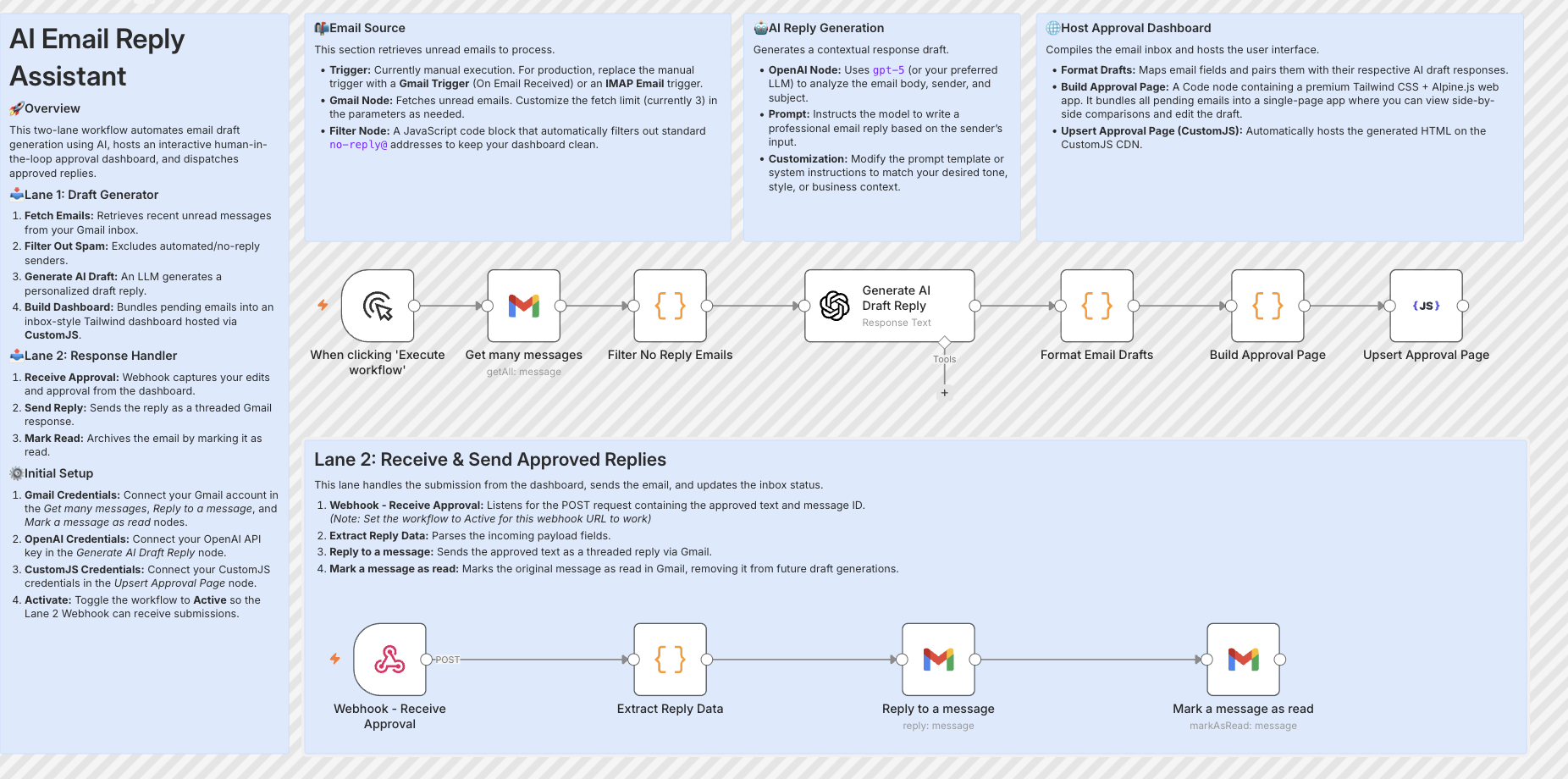
Build resilient HITL approval workflows in n8n using custom HTML forms hosted on customjs.space. The 2-workflow async architecture that survives server restarts and supports pre-filled editable review forms.
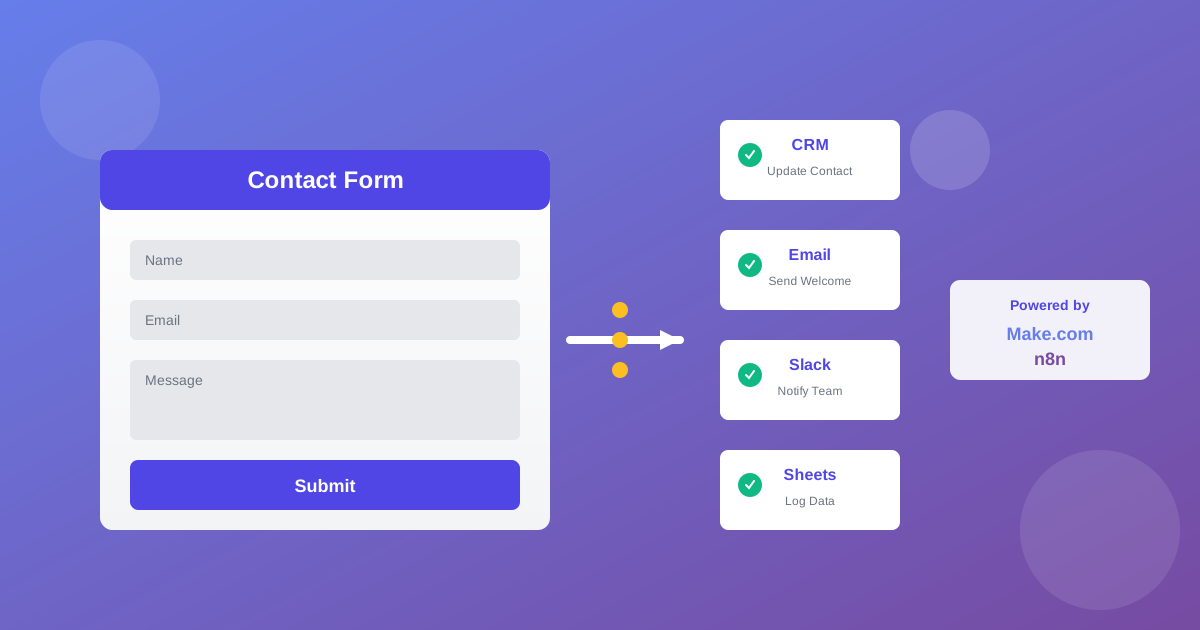
Automate lead generation and user onboarding with form webhooks. Connect forms to Make.com, n8n, and Zapier for instant CRM updates, email sequences, and team notifications. 600 free submissions/month.
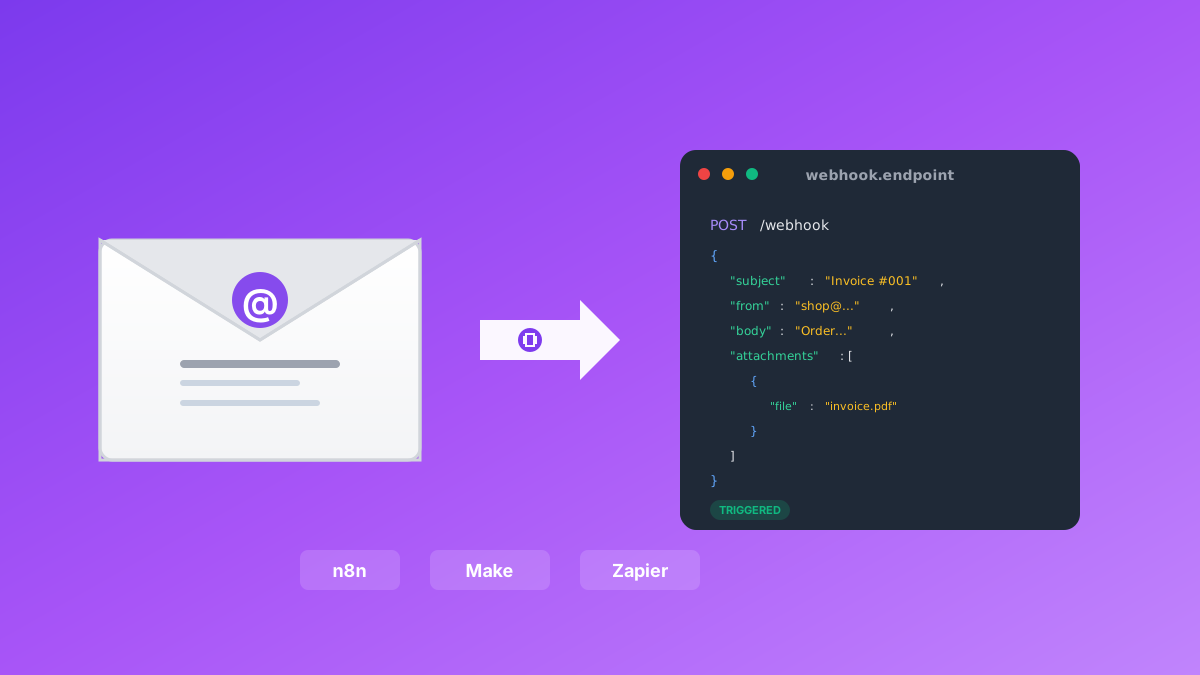
Convert emails to webhooks for Make.com, n8n, and Zapier automation. Process invoices, support tickets, orders, and alerts automatically. Native n8n module included. 600 free emails/month.
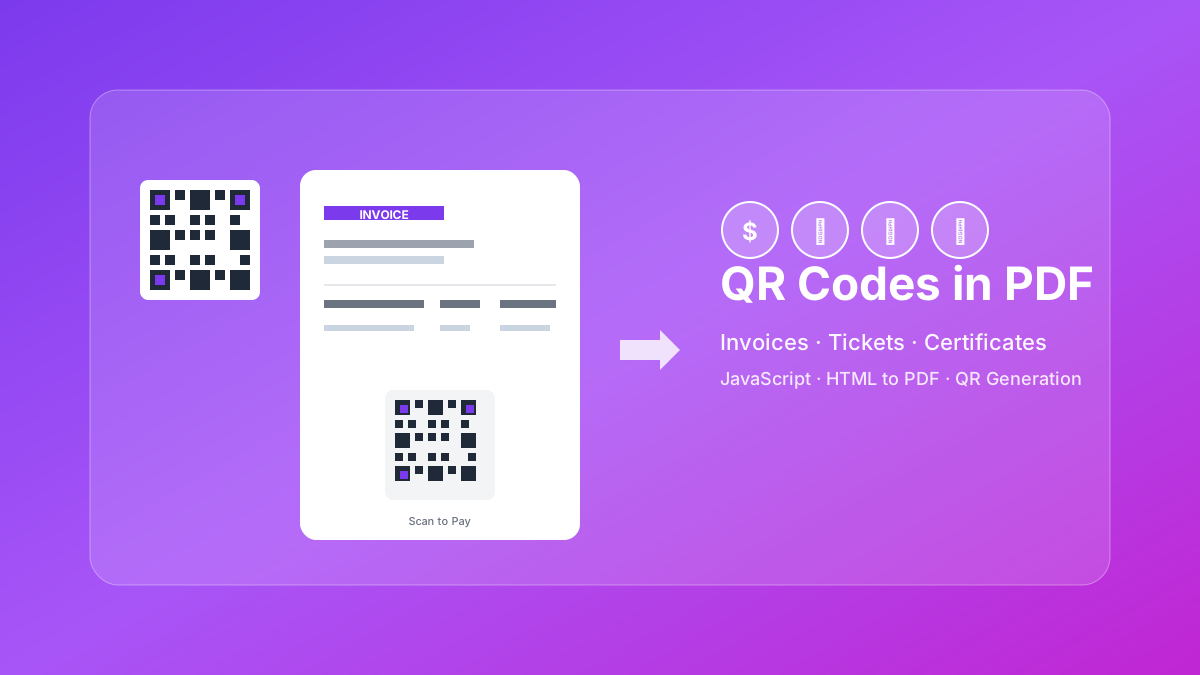
Learn how to generate QR codes in PDF documents using JavaScript. Complete guide with examples for invoices, tickets, certificates, and business cards.
Cost-effective alternative to QuickBooks & FreshBooks. Automatic PDF invoice generation with n8n, Make.com, or API integration.
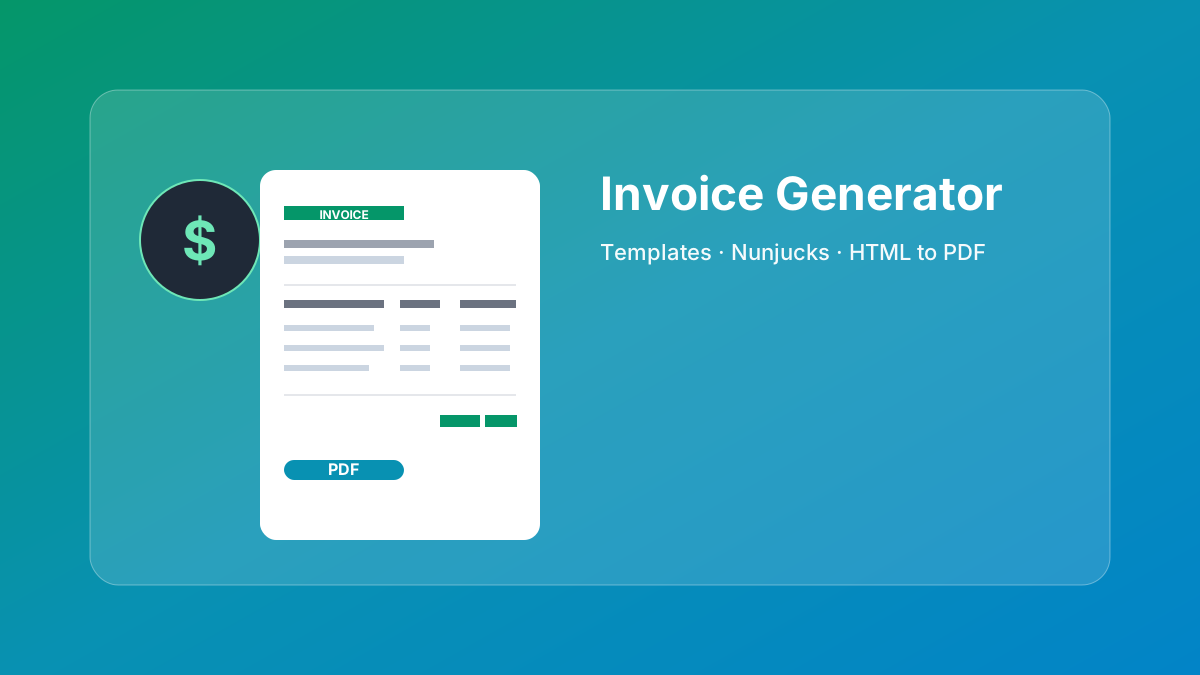
Creating professional HTML invoices that convert perfectly to PDF is essential for any business. 5 beautiful invoice templates with live PDF generators.
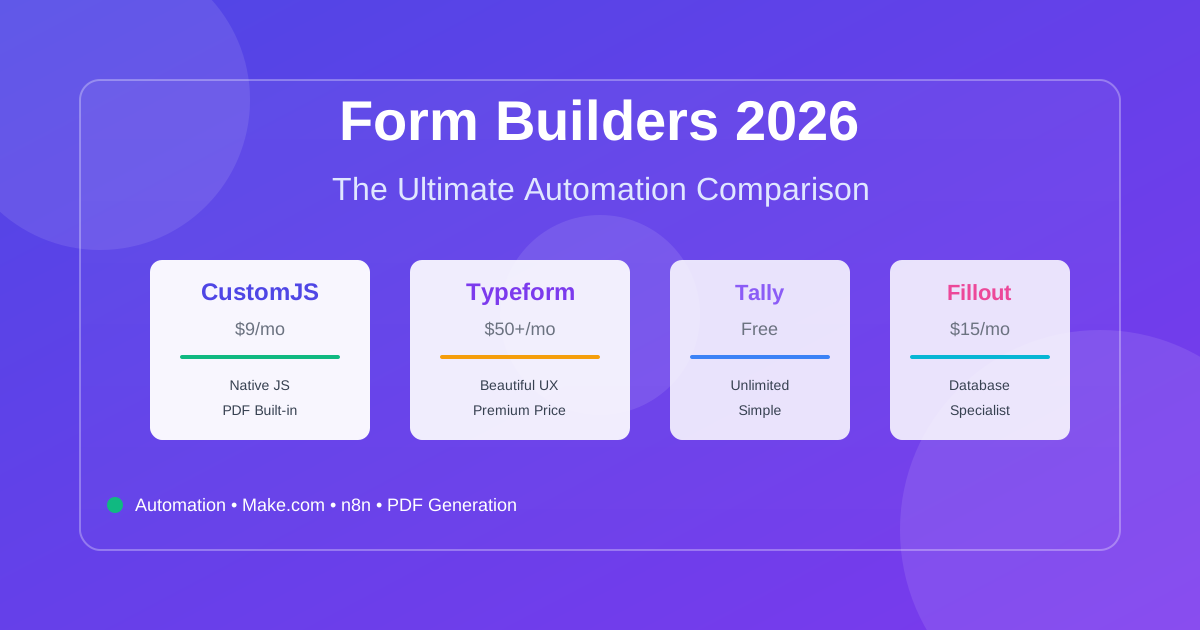
Compare the best form builders for automation in 2026. CustomJS vs. Typeform vs. Jotform vs. Tally vs. Fillout. Features, pricing, and real-world use cases. Save $420-1,056/year on automation costs.
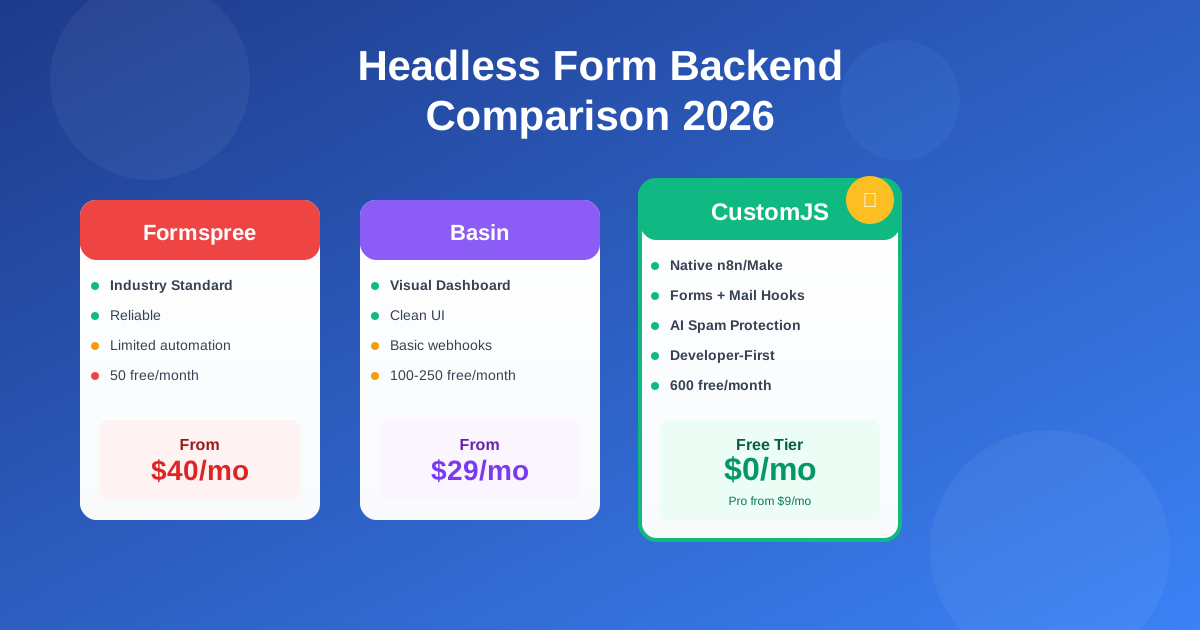
Compare the best headless form backends: Formspree vs Basin vs Getform vs CustomJS. Developer-first analysis of features, pricing, automation, and real-world performance. 600 free submissions/month.
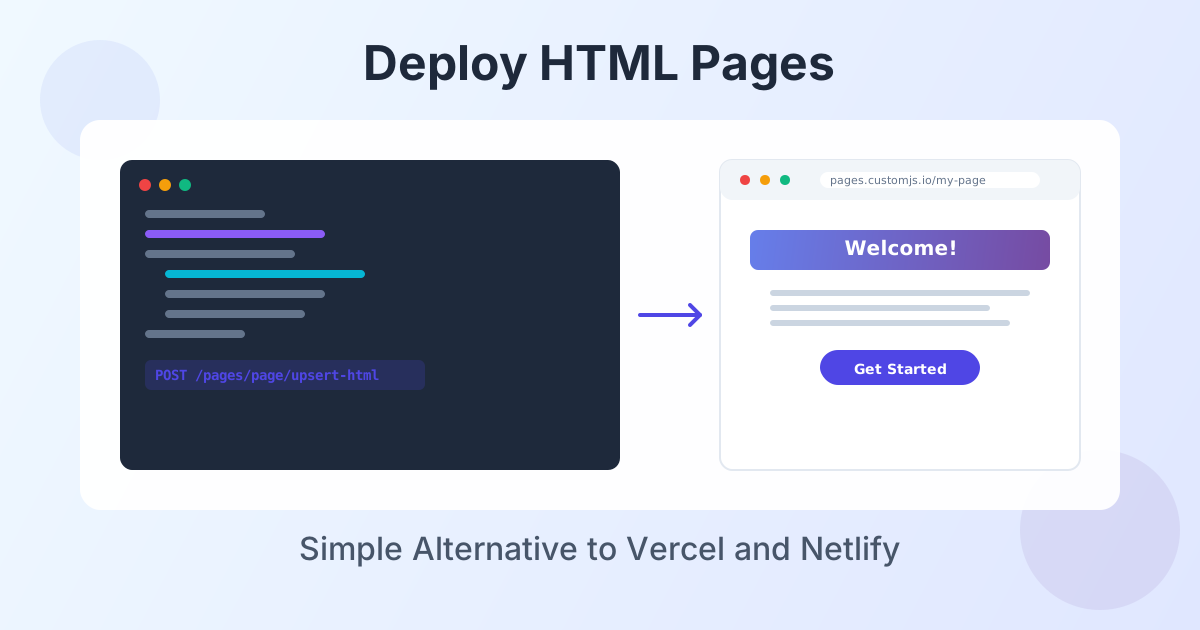
Deploy HTML landing pages with a single API call. No Git, no build steps, no complexity. Perfect for AI-generated pages, campaigns, and prototypes. 600 free deployments/month.
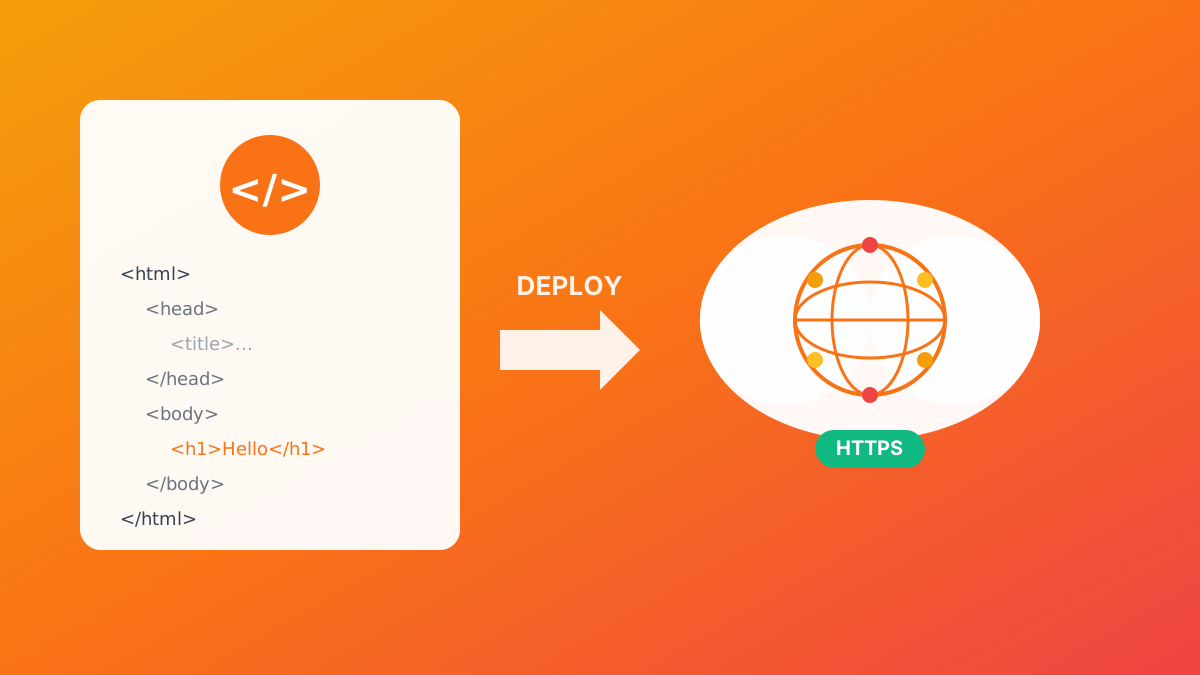
Deploy HTML pages instantly without server setup. Perfect for QR code landing pages, event forms, and promotional campaigns. Automatic HTTPS, custom domains, Make.com & n8n integration. 600 free pages/month.
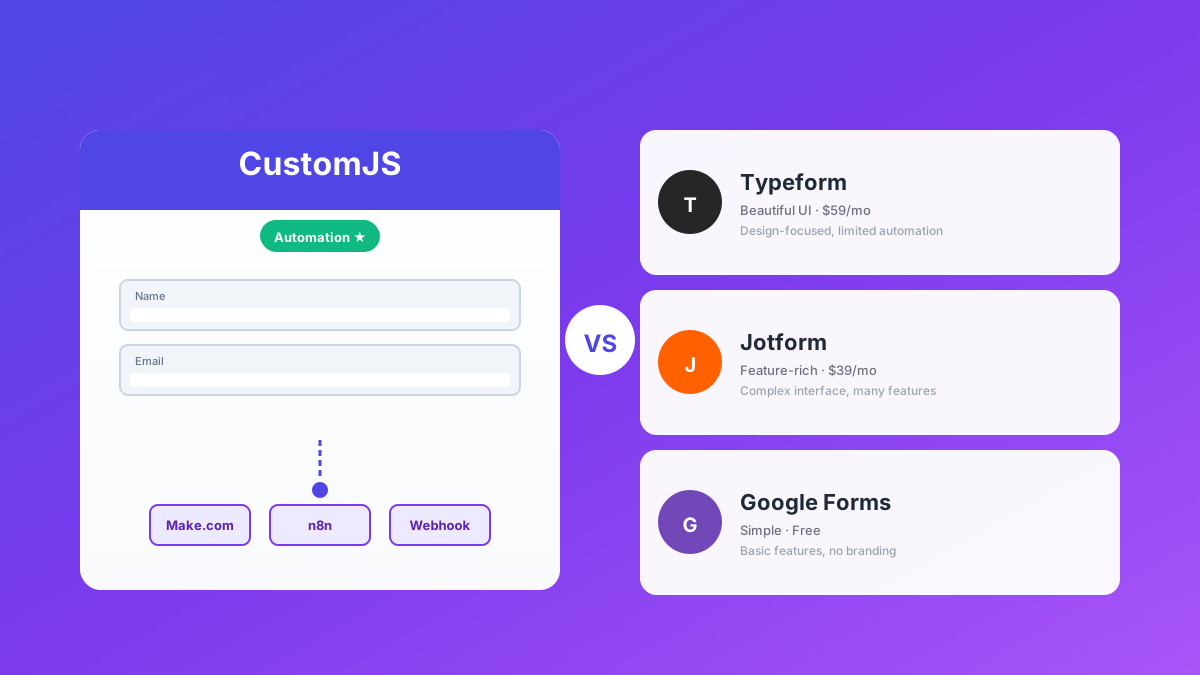
Detaillierter Vergleich: CustomJS Form Builder vs. Typeform, Jotform & Google Forms. Welcher Builder passt zu deinem Workflow? Make.com & n8n Integration, Custom Domains, Webhooks.
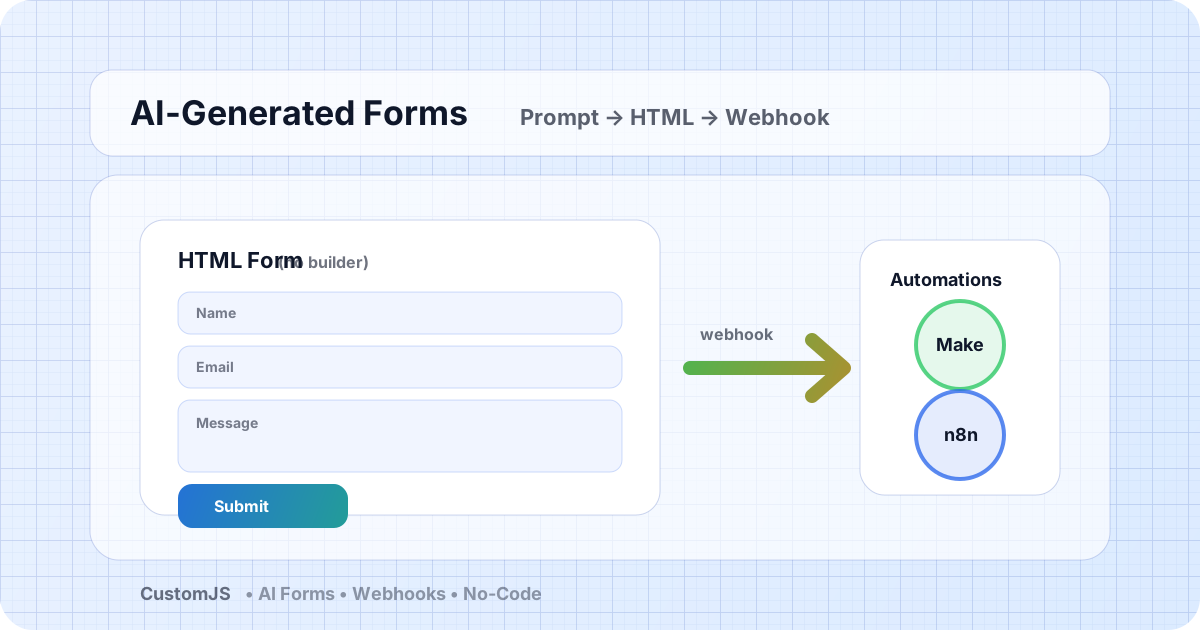
Generate HTML forms with AI (no form builder) and send submissions to webhooks that trigger Make.com and n8n workflows. Includes copy-paste code and best practices.

Generate automated social media screenshots and dynamic OG images from HTML templates. Includes API examples and Make.com/n8n automation workflows.
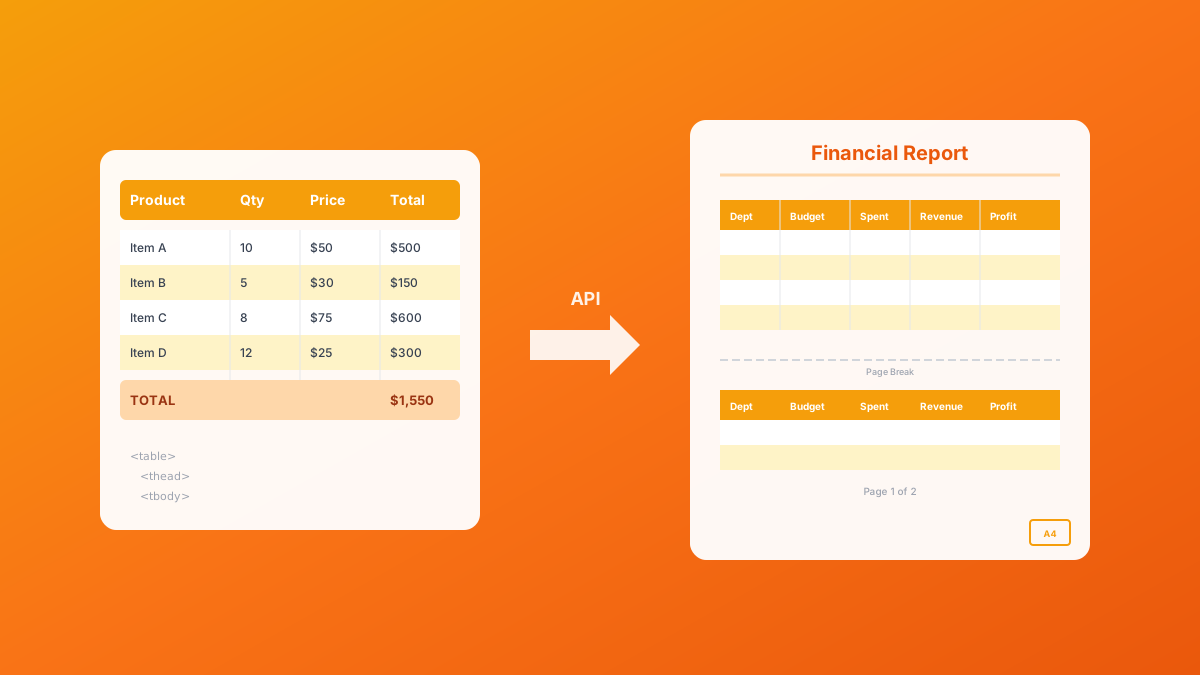
Master HTML table to PDF conversion with landscape orientation, page breaks, and responsive patterns. Complete guide with examples for financial reports, data exports, and invoices. 600 free conversions/month.
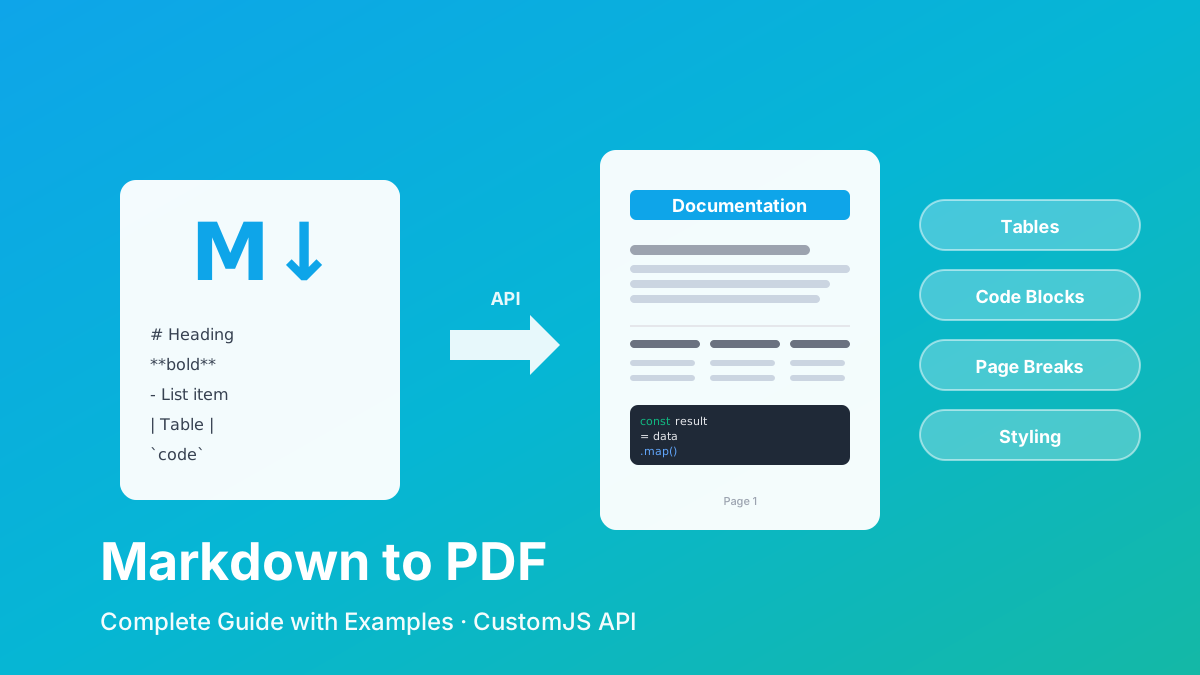
Convert Markdown to PDF with tables, code blocks, and custom styling. Complete guide with examples for API documentation, reports, and automated workflows. 600 free conversions/month.
Create professional HTML receipt templates that convert perfectly to PDF. Use our free receipt PDF generator or choose from 5 customizable templates for e-commerce, SaaS, and service businesses.
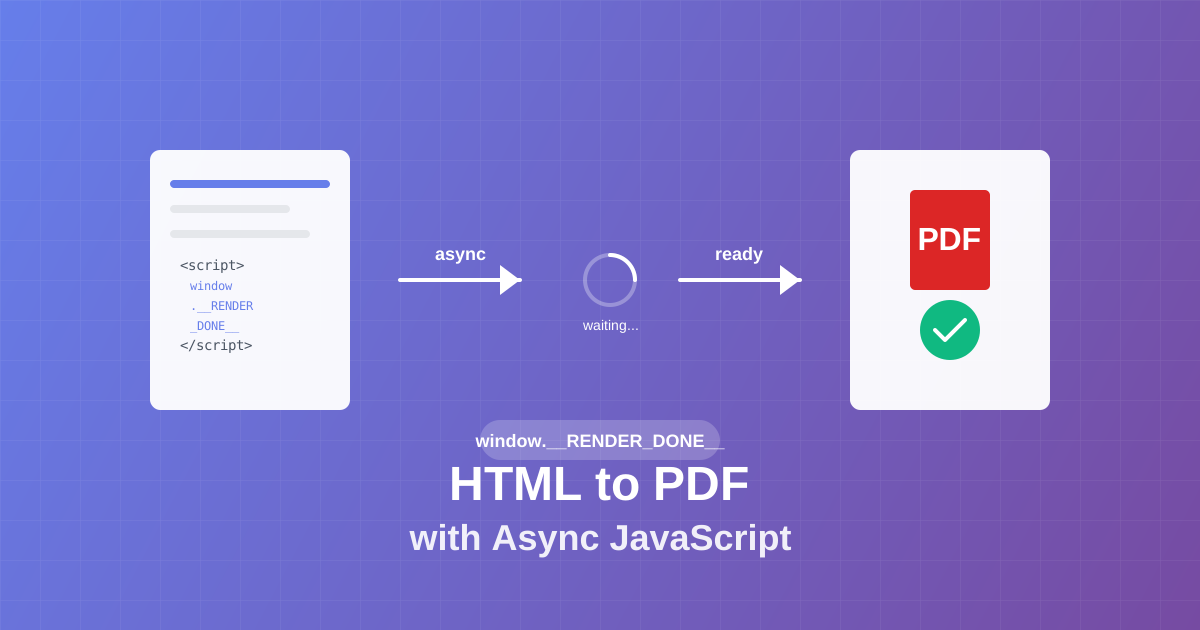
Master async JavaScript execution in PDF generation. Learn the window.__RENDER_DONE__ pattern for reliable HTML to PDF conversion with QR codes, charts, and dynamic content.
Compare HTML to PDF conversion APIs for price, speed, and JavaScript support. CustomJS offers 600 free PDFs/month and easy Make.com integration.
Adding page numbers and footers to PDF documents. Explore 6 different approaches with interactive examples.<br>
Broken page breaks, margins, fonts, tables? Fix the most common HTML-to-PDF issues with practical CSS strategies and examples.
Master print styles with our Print CSS Cheatsheet. Learn tips, tricks, and code examples to create professional, print-ready HTML documents.
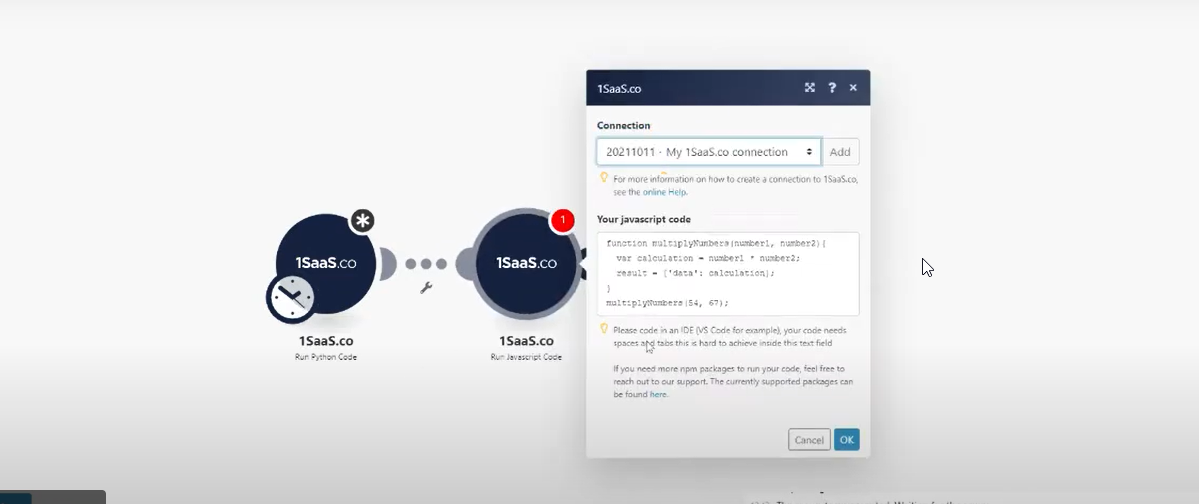
If you want to improve your workflow in Make with JavaScript, there are some powerful tools available. Two of the best options are 0CodeKit and CustomJS.
Automate complex tasks without blowing your budget! Learn how Make, Zapier, & n8n enable custom JS automation at various price points.
Choosing the right workflow automation tool between Make, Zapier, and n8n depends on your tech comfort, task complexity, and budget.
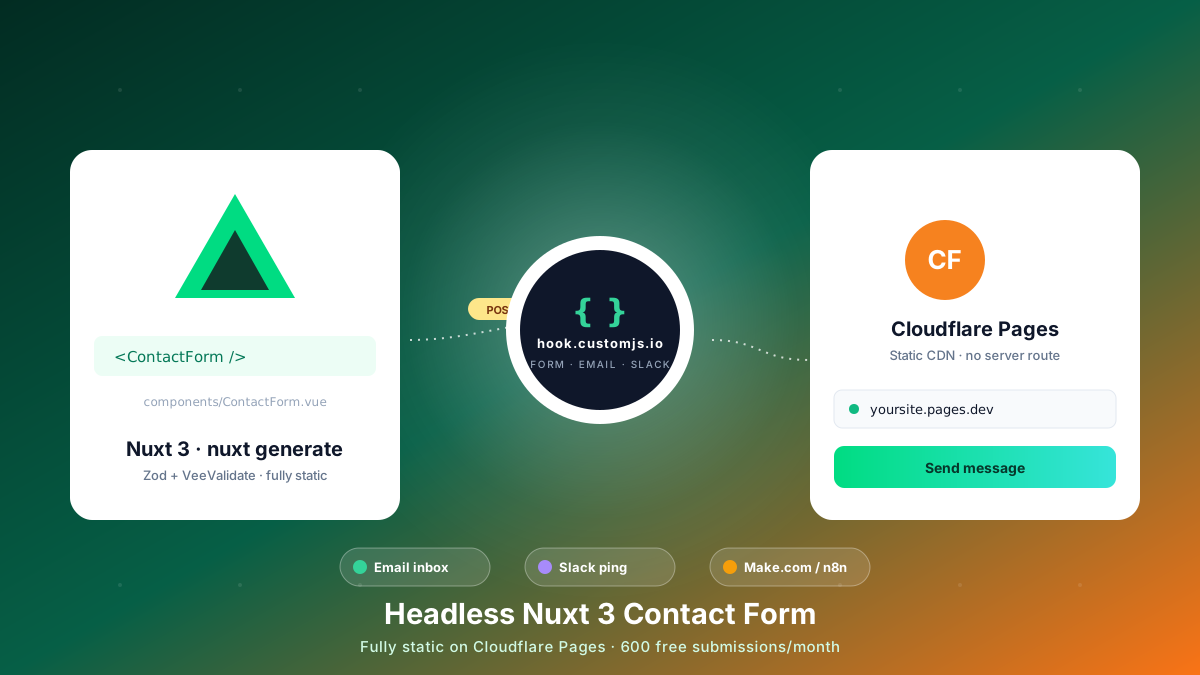
Build a Nuxt 3 contact form on Cloudflare Pages with no backend. Reusable Vue component, Zod + VeeValidate validation, email + Slack automation. 600 free submissions/month.
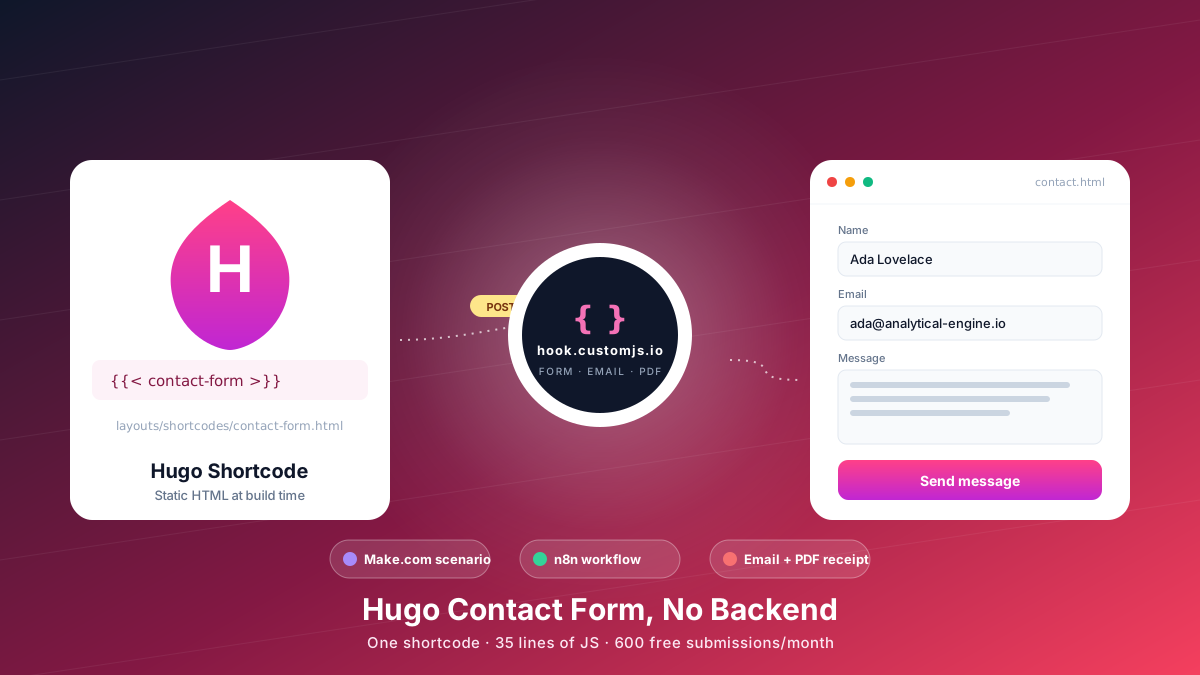
Add a Hugo contact form without a backend. Copy-paste shortcode, vanilla JS handler, spam protection, email + PDF receipt, Make.com & n8n routing. 600 free submissions/month.
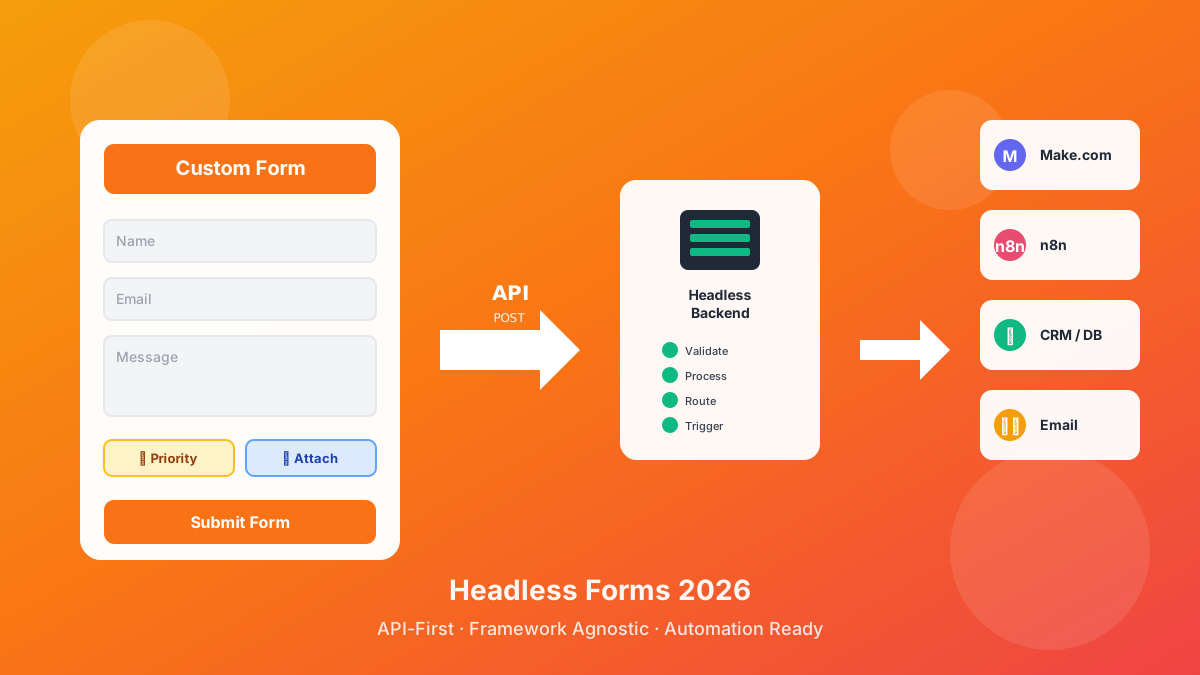
Discover what headless forms enable in 2026: pure frontend stacks, custom multi-step flows, API-first marketing automation, and programmatic form generation. 600 free submissions/month.
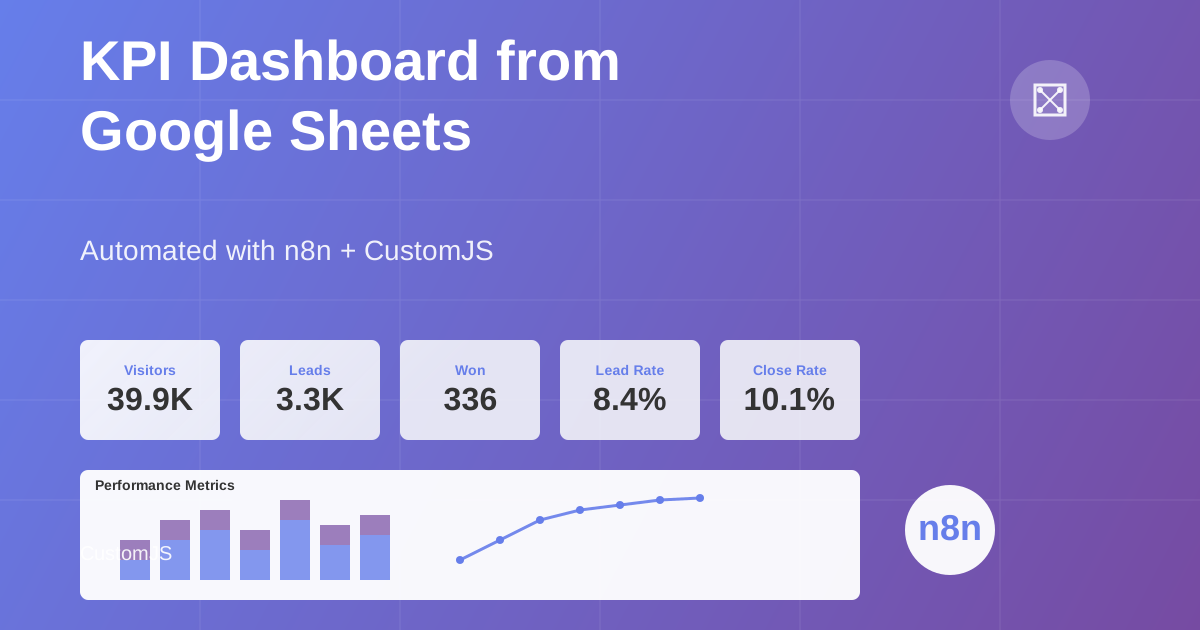
Build automated KPI dashboards from Google Sheets using n8n and CustomJS. Generate interactive charts with Chart.js, host static HTML pages, and connect custom domains. Complete workflow template included.
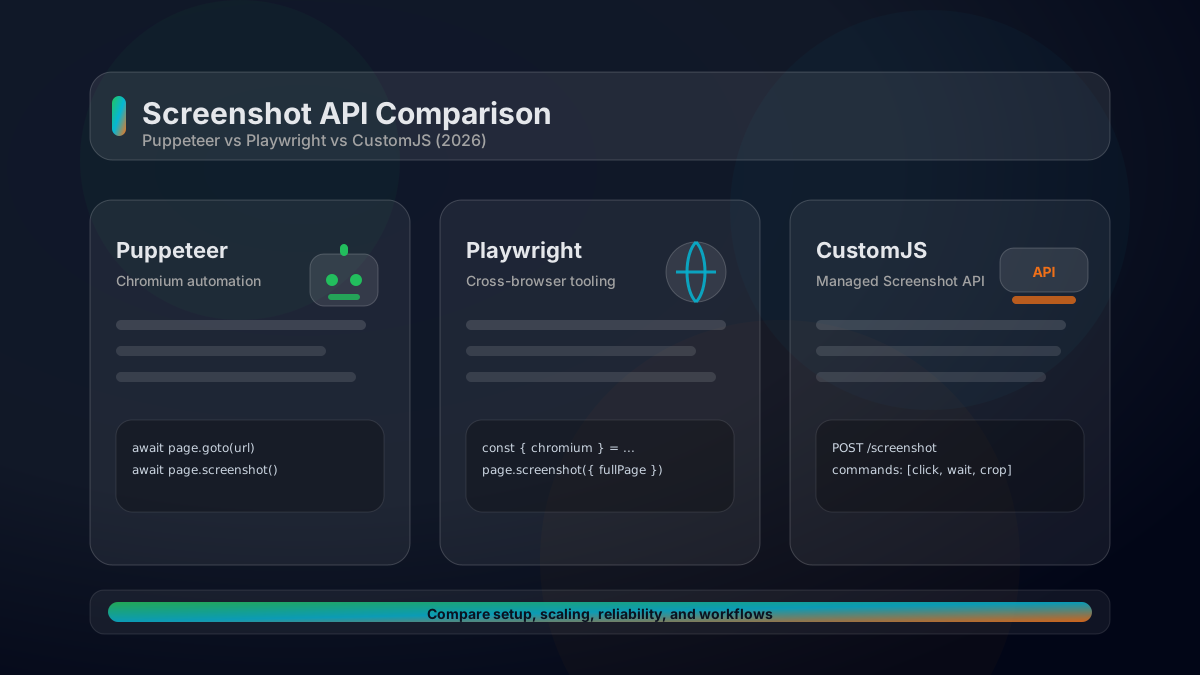
A practical comparison of Puppeteer vs Playwright vs a managed Screenshot API. Feature matrix, code examples, scaling considerations, and how to choose in 2026.
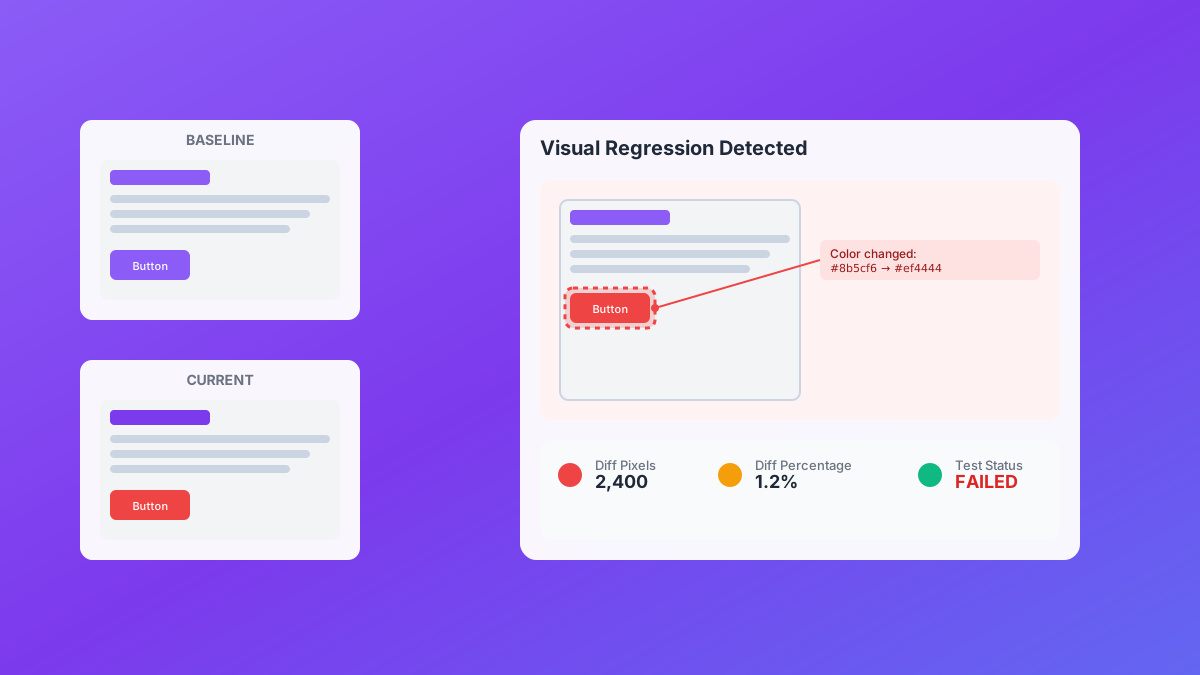
Automate visual regression testing with screenshot API. Capture screenshots, crop regions, detect visual bugs, and integrate with CI/CD. 600 free screenshots/month.
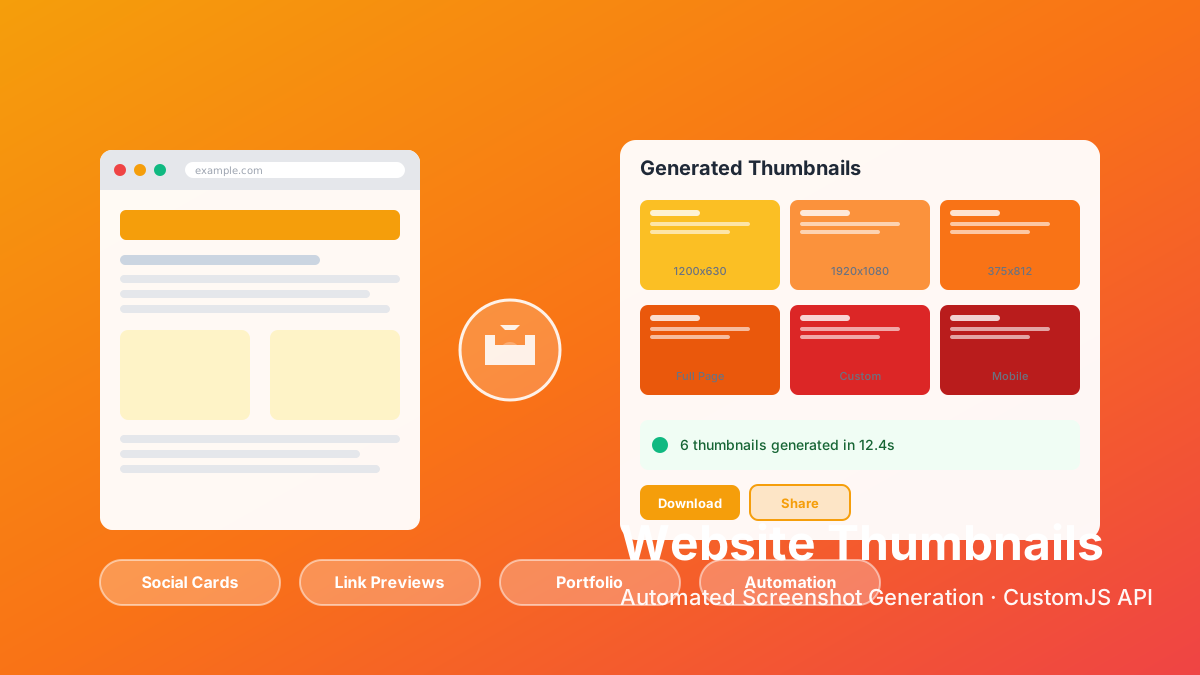
Screenshot API with interactive browser automation. Capture websites, click buttons, fill forms, crop areas. 600 free screenshots/month with Make.com & n8n integration.
Execute JavaScript code directly in Power Automate. Integrate JavaScript with CustomJS in 5 minutes – no Azure Functions needed.
A deep dive into the top 5 screenshot APIs for 2025, comparing features, pricing, and performance to help you choose the best one.
Explore CustomJS as a powerful IFTTT alternative. See how it compares to IFTTT for custom and advanced automation and which tool suits your needs.