HTML Table to PDF: Complete Guide with Responsive Examples
Converting HTML tables to PDF is one of the most challenging aspects of PDF generation. Wide tables overflow page margins, long tables break awkwardly across pages, and complex table layouts often render incorrectly. This comprehensive guide covers everything you need to know about creating professional, print-ready table PDFs.
Whether you're generating financial reports, data exports, invoices with line items, or analytical dashboards, mastering table-to-PDF conversion is essential. According to industry surveys, over 65% of PDF generation issues involve table formatting problems. We'll show you proven strategies for handling landscape orientation, page breaks, responsive designs, and advanced styling.
This guide includes interactive examples using CustomJS's HTML to PDF API, which offers 600 free conversions per month and seamless integration with Make.com and n8n for automated report generation.
TL;DR
HTML tables in PDFs require careful consideration of page width, orientation, and break strategies.
Use landscape orientation for wide tables with many columns (more than 5-6 columns).
Control page breaks with CSS properties like page-break-inside: avoid on table rows.
Responsive table patterns include column hiding, font size reduction, and horizontal scrolling alternatives.
CustomJS HTML to PDF API handles complex tables with full CSS support and 600 free conversions/month.
Common HTML Table to PDF Challenges
Before diving into solutions, let's understand the main challenges developers face when converting HTML tables to PDF:
1. Wide Tables Overflowing Page Width
Tables with many columns often exceed standard page width (8.5" or A4). Content gets cut off or compressed to the point of being unreadable. This is especially problematic for financial reports, data exports, and comparison tables.
2. Long Tables Breaking Across Pages
Multi-page tables can break in awkward places, splitting rows across pages or losing header context. Without proper page break control, table data becomes difficult to read and interpret.
3. Inconsistent Cell Sizing
Variable content lengths cause cells to resize unpredictably. Long text in one cell can distort the entire table layout, making it look unprofessional in the final PDF.
4. Missing Table Headers on Subsequent Pages
When tables span multiple pages, readers lose context without repeated headers. CSS print properties can solve this, but many PDF generators don't support them properly.
Basic HTML Table to PDF Example
Let's start with a simple table conversion using the CustomJS API. This example shows a basic data table with proper styling for PDF output.
Try modifying the table content in the interactive widget above to see how different data renders in PDF format.
Landscape vs. Portrait Orientation for Wide Tables
One of the most effective strategies for handling wide tables is switching to landscape orientation. This gives you significantly more horizontal space for columns.
When to Use Landscape Orientation
6+ columns: Tables with more than 5-6 columns typically benefit from landscape orientation.
Wide data: Financial reports, spreadsheets, and comparison tables with lengthy column content.
Minimal vertical content: If your table doesn't have many rows, landscape works well.
Data-heavy reports: Analytics dashboards and statistical reports often require landscape.
Test with Real Data: Always test your table layouts with realistic data volumes. Edge cases like very long text, special characters, or empty cells can break layouts.
Use Semantic HTML: Properly structure tables with thead, tbody, and tfoot elements for better PDF rendering.
Optimize Font Sizes: Use 8-10pt for table data, 9-11pt for headers. Smaller fonts allow more columns but reduce readability.
Consider Color Printing Costs: If PDFs will be printed, use grayscale or minimal color. Heavy background colors increase printing costs.
Add Page Numbers: For multi-page tables, use CSS @page rules to add page numbers.
Handle Empty States: Always handle cases where tables might be empty or have no data with appropriate messaging.
Troubleshooting Common Issues
Issue 1: Table Overflows Page Width
Solutions: Switch to landscape orientation, reduce font size (8-9pt), hide non-essential columns, use abbreviations in headers, or split into multiple tables.
Issue 2: Rows Split Across Pages
Solution: Use page-break-inside: avoid on tr elements.
Issue 3: Headers Not Repeating
Solution: Use thead { display: table-header-group; } in your CSS.
Issue 4: Inconsistent Cell Heights
Solution: Use vertical-align: top on table cells or set fixed heights with overflow handling.
Pricing and Limits
CustomJS offers transparent, developer-friendly pricing for HTML to PDF conversion:
Free Tier: 600 PDF conversions per month (no credit card required)
Starter Plan: $9/month for 3,000 conversions
Growth Plan: $29/month for 15,000 conversions
Enterprise: Custom pricing for high-volume needs
Each HTML to PDF conversion counts as one API call, regardless of table complexity or page count. No hidden fees or per-page charges.
In portrait orientation, 4-5 columns work well. In landscape, you can fit 8-10 columns comfortably. Beyond that, consider reducing font size or splitting tables.
2. Can I repeat table headers on each page?
Yes! Use thead elements with display: table-header-group CSS property. CustomJS fully supports this feature.
3. What's the maximum table size for PDF conversion?
CustomJS can handle tables with thousands of rows. The API accepts HTML content up to 10MB. For very large datasets, consider pagination or splitting into multiple PDFs.
4. How do I prevent rows from breaking across pages?
Use page-break-inside: avoid on tr elements. This ensures each row stays together on one page.
5. Can I use custom fonts in table PDFs?
Yes! CustomJS supports web fonts via @font-face or Google Fonts. Include font declarations in your HTML's style section.
6. How do I handle very wide tables?
Use landscape orientation (@page { size: A4 landscape; }), reduce font size, hide optional columns, or split into multiple tables.
7. Can I add page numbers to multi-page table PDFs?
Yes! Use CSS @page rules with @bottom-right or @bottom-center to add page numbers. See our pagination guide for details.
8. Does CustomJS work with Make.com and n8n?
Yes! CustomJS offers native modules for both Make.com and n8n, making it easy to automate table-to-PDF workflows.
Conclusion
Converting HTML tables to PDF doesn't have to be frustrating. With the right CSS strategies, proper page break management, and responsive design patterns, you can create professional, print-ready table PDFs that handle any data complexity.
The key takeaways: use landscape orientation for wide tables, prevent row breaks with CSS, repeat headers on multi-page tables, and test with realistic data. CustomJS's HTML to PDF API handles all these scenarios reliably with full CSS support.
Whether you're generating financial reports, data exports, invoices, or analytical dashboards, CustomJS provides the flexibility and reliability you need. With 600 free conversions per month and native Make.com/n8n integration, it's the ideal solution for automated table-to-PDF workflows.
Generate professional PDFs in Power Automate with CustomJS. Create invoices, receipts, reports, and certificates with custom HTML templates, QR codes, and advanced formatting. No Azure Functions required.
Create professional HTML receipt templates that convert perfectly to PDF. Use our free receipt PDF generator or choose from 5 customizable templates for e-commerce, SaaS, and service businesses.
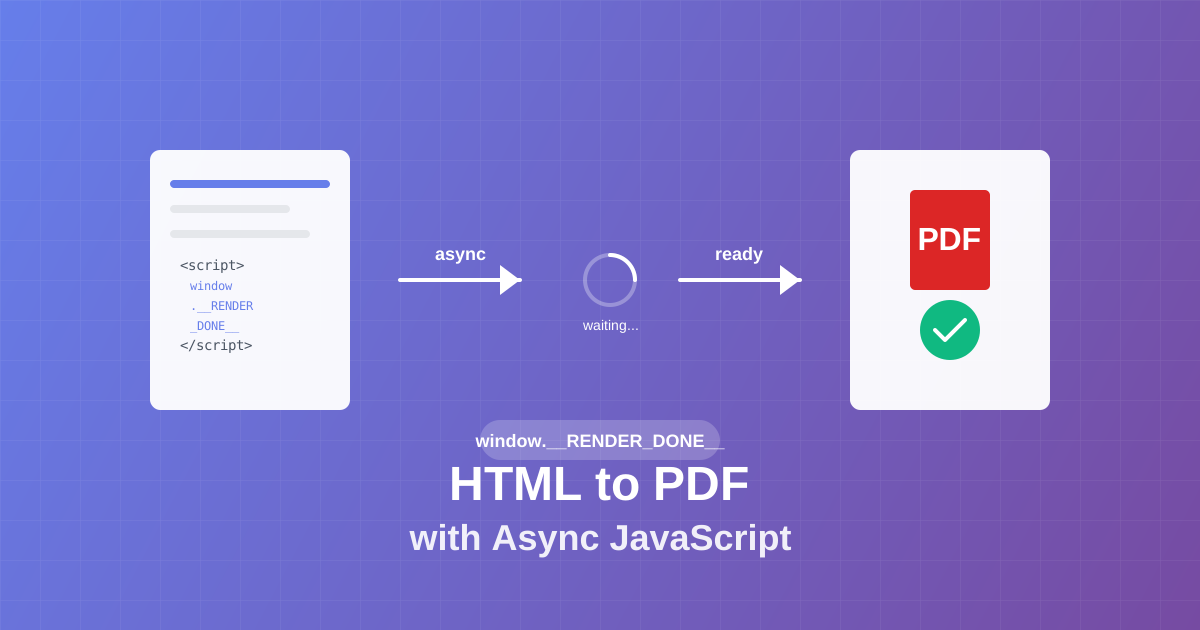
Master async JavaScript execution in PDF generation. Learn the window.__RENDER_DONE__ pattern for reliable HTML to PDF conversion with QR codes, charts, and dynamic content.