Generate QR Codes in PDF Documents: Complete Guide with Examples
Learn how to generate QR codes in PDF documents using HTML and JavaScript. This comprehensive guide covers everything from basic QR code generation to advanced use cases like payment QR codes, event tickets, and digital certificates.
QR codes in PDFs are essential for modern business documents - from invoices with payment links to event tickets with check-in codes. We'll show you how to create professional PDFs with embedded QR codes using popular JavaScript libraries and our PDF API.
Why Add QR Codes to PDF Documents?
QR codes in PDFs bridge the gap between physical and digital experiences. They enable instant actions like payments, website visits, or data verification directly from printed documents. Here are the most common use cases:
Invoice Payment QR Codes: Allow customers to pay instantly by scanning the QR code
Event Tickets: Enable quick check-in and attendance tracking
Digital Certificates: Verify authenticity with blockchain or database lookups
Business Cards: Share contact information via vCard QR codes
Product Documentation: Link to manuals, videos, or support pages
Restaurant Menus: Connect to online ordering or allergen information
Best JavaScript QR Code Libraries
Several excellent JavaScript libraries can generate QR codes. Here's a comparison of the most popular options:
Library
GitHub Stars
Best For
Key Features
qrcode
~17,000
✅ Browser & Node.js
Simple API, SVG/PNG/Canvas, CDN available
qr-code-styling
~3,000
✅ Browser & Node.js
Custom colors, logos, rounded corners
qrcodejs
~12,000
✅ Browser only
Zero dependencies, simple, lightweight
node-qrcode
~7,000
❌ Node.js only
Server-side, CLI support
For this guide, we'll use qrcode (npm package) as it offers the best balance of features, browser/Node.js support, and ease of use. It's perfect for generating QR codes that will be embedded in PDFs.
✅ Browser Support
The qrcode library works perfectly in browsers! You can include it via CDN or use the precompiled browser build. All examples in this guide use browser-compatible code. No Node.js required for client-side generation.
Basic QR Code Generation in HTML
Let's start with a simple example of generating a QR code and embedding it in an HTML document that can be converted to PDF.
Step 1: Include QR Code Library
For browser usage, include the library via CDN or install via npm:
Generate a PDF with a QR code that links to CustomJS website:
Use Case 1: Invoice with Payment QR Code
One of the most practical applications is adding payment QR codes to invoices. This allows customers to pay instantly by scanning the code with their banking app.
Payment QR Code Formats
EPC QR Code (Europe): SEPA payment standard for European banks
UPI QR Code (India): Unified Payments Interface for instant payments
Bitcoin/Crypto: Cryptocurrency wallet addresses
PayPal.Me: Direct PayPal payment links
Payment URL: Link to online payment page
Example: EPC QR Code for SEPA Payments
// EPC QR Code format for SEPA payments (Browser)
const invoiceTotal = '250.00';
const invoiceNumber = 'INV-2025-001';

const epcData = `BCD
002
1
SCT
COBADEFFXXX
Your Company Name
DE89370400440532013000
EUR${invoiceTotal}
CHAR

Invoice ${invoiceNumber}`;

const qrCode = await QRCode.toDataURL(epcData, {
  errorCorrectionLevel: 'M',
  width: 200
});
Complete Invoice Template with QR Code
<div class="invoice">
  <h1>INVOICE #</h1>

  <!-- Invoice details -->
  <div class="details">
    <p>Total: </p>
    <p>Due Date: </p>
  </div>

  <!-- Payment QR Code -->
  <div class="payment-section">
    <h3>Pay with QR Code</h3>
    <img src="" alt="Payment QR Code" />
    <p>Scan to pay instantly via your banking app</p>
  </div>
</div>
🎯 Try it yourself: Invoice with Payment QR Code
Interactive example of an invoice with embedded payment QR code:
Use Case 2: Event Tickets with Check-in QR Codes
Event tickets with QR codes enable fast, contactless check-in. The QR code can contain ticket ID, attendee information, or a verification URL.
Generate a professional event ticket PDF with QR code:
Use Case 3: Digital Certificates with Verification QR Codes
Add QR codes to certificates, diplomas, or credentials to enable instant verification of authenticity. This is crucial for preventing fraud and enabling employers or institutions to verify credentials.
vCard QR codes allow people to save your contact information directly to their phone by scanning. This is perfect for business cards, email signatures, and networking materials.
<div class="business-card">
  <div class="card-front">
    <h2></h2>
    <p class="title"></p>
    <p class="company"></p>

    <div class="contact-info">
      <p></p>
      <p></p>
      <p></p>
    </div>

    <div class="qr-code">
      <img src="" alt="Contact QR Code" />
      <p>Scan to save contact</p>
    </div>
  </div>
</div>
Styling QR Codes: Colors, Logos, and Custom Designs
While basic black-and-white QR codes work perfectly, you can customize them to match your brand. Use the qr-code-styling library for advanced styling options.
Custom Styled QR Code
Use the qr-code-styling library for advanced customization:
// Browser: include via CDN or npm
// <script src="https://cdn.jsdelivr.net/npm/[email protected]/lib/qr-code-styling.js"></script>

const qrCode = new QRCodeStyling({
  width: 300,
  height: 300,
  data: "https://customjs.space",
  image: "https://yoursite.com/logo.png", // Center logo
  dotsOptions: {
    color: "#4267b2",
    type: "rounded" // Options: rounded, dots, classy, square
  },
  backgroundOptions: {
    color: "#ffffff",
  },
  imageOptions: {
    crossOrigin: "anonymous",
    margin: 10
  },
  cornersSquareOptions: {
    color: "#000000",
    type: "extra-rounded"
  },
  cornersDotOptions: {
    color: "#4267b2",
    type: "dot"
  }
});

// Get as data URL for embedding in HTML
qrCode.getRawData('png').then(blob => {
  const reader = new FileReader();
  reader.onload = () => {
    const dataUrl = reader.result;
    console.log(dataUrl); // Use in img src
  };
  reader.readAsDataURL(blob);
});
QR Code Styling Best Practices
Contrast: Ensure sufficient contrast between foreground and background (minimum 3:1 ratio)
Logo Size: Keep center logos under 30% of QR code area to maintain scannability
Error Correction: Use high error correction (Level H) when adding logos or custom styling
Testing: Always test QR codes with multiple devices and scanning apps
Size: Minimum 2cm x 2cm for printed materials, 200x200px for digital
QR Code Best Practices & Error Correction
Error Correction Levels
QR codes have built-in error correction that allows them to be scanned even if partially damaged:
Level
Recovery Capacity
Best For
L (Low)
~7% damage
Clean environments, digital displays
M (Medium)
~15% damage
General use, most applications
Q (Quartile)
~25% damage
Outdoor use, industrial settings
H (High)
~30% damage
Logos, heavy wear, critical applications
Size Guidelines
Minimum Print Size: 2cm x 2cm (0.8" x 0.8")
Recommended Print Size: 3-4cm x 3-4cm for easy scanning
Digital Size: 200x200px minimum, 300x300px recommended
Viewing Distance: QR code size should be at least 10% of viewing distance
Testing Checklist
Test with multiple devices (iOS, Android)
Test with different scanning apps (Camera, dedicated QR apps)
Test in various lighting conditions
Verify data accuracy after scanning
Test printed versions if applicable
Security Considerations
URL Validation: Always validate QR code URLs before generation
HTTPS Only: Use secure HTTPS URLs for verification links
Expiration: Consider time-limited QR codes for sensitive data
Unique IDs: Use unique, non-sequential identifiers
Rate Limiting: Implement rate limiting on verification endpoints
🔧 Troubleshooting: Script Loading in Headless Browsers
The Problem with CDN Scripts
When generating PDFs with dynamic content like QR codes, you might encounter this error:
Refused to execute script because its MIME type ('text/plain') is not executable
Why this happens:
CDNs like jsDelivr may serve files with Content-Type: text/plain instead of application/javascript
Headless browsers (Puppeteer, CustomJS) enforce strict MIME type checks
Parser-blocking cross-origin scripts trigger additional warnings in modern Chrome
document.write or external <script src> can fail in sandboxed environments
✅ The Solution: Use ES Modules
Instead of traditional CDN scripts:
<!-- ❌ This fails in headless browsers -->
<script src="https://cdn.jsdelivr.net/npm/[email protected]/build/qrcode.min.js"></script>
Use ES Module imports with esm.sh:
<!-- ✅ This works reliably -->
<script type="module">
  import QRCode from "https://esm.sh/[email protected]";

  const canvas = document.getElementById('qr-canvas');
  await QRCode.toCanvas(canvas, 'https://example.com', {
    width: 200
  });
</script>
Why ES Modules work:
✅ Served with correct Content-Type: application/javascript
✅ No parser-blocking issues
✅ Native browser support
✅ Works in headless environments
✅ No document.write needed
Alternative Solutions
1. Inline the library:
<script>
  // Paste entire qrcode.min.js content here
</script>
2. Pre-bundle with esbuild:
esbuild --bundle --format=iife app.js > bundle.js
3. Use CustomJS with window.__RENDER_DONE__:
For async content that needs to finish before PDF generation:
<script>
  // Set flag EARLY in <head>
  window.__RENDER_DONE__ = false;
</script>

<script type="module">
  import QRCode from "https://esm.sh/[email protected]";

  await QRCode.toCanvas(canvas, url, options);

  // Signal completion
  window.__RENDER_DONE__ = true;
</script>
What is the best JavaScript library for generating QR codes?
The qrcode npm package is the most popular and reliable choice, with ~17,000 GitHub stars. It works in both Node.js and browsers, supports multiple output formats (PNG, SVG, Canvas), and has excellent documentation. For styled QR codes with logos and custom colors, use qr-code-styling.
Can I add a logo to my QR code?
Yes! Use the qr-code-styling library to add logos. Keep the logo under 30% of the QR code area and use high error correction (Level H) to ensure scannability. Always test the QR code with multiple devices after adding a logo.
How do I create a payment QR code for invoices?
For European SEPA payments, use the EPC QR code format. For other regions, use UPI (India), Bitcoin addresses, or payment URLs (PayPal, Stripe). The QR code should contain payment details like amount, recipient, and reference number. See our invoice example above for complete code.
What size should QR codes be in PDFs?
For printed PDFs, QR codes should be at least 2cm x 2cm (0.8" x 0.8"), with 3-4cm recommended for easy scanning. In digital PDFs, use 200x200px minimum, 300x300px recommended. The size should be 10% of the expected viewing/scanning distance.
How do I embed QR codes in HTML for PDF conversion?
Generate the QR code as a base64 data URL using QRCode.toDataURL(), then embed it in your HTML template using an <img> tag with the data URL as the src attribute. This ensures the QR code is embedded directly in the HTML without external dependencies.
What error correction level should I use?
Use Medium (M) for general applications, High (H) when adding logos or for critical applications like tickets and certificates, and Low (L) only for clean digital environments. Higher error correction allows the QR code to be scanned even if partially damaged.
Can I automate QR code PDF generation?
Yes! Use the CustomJS API to automate PDF generation with QR codes. You can integrate with n8n, Make.com, or use our HTTP API directly. Generate the QR code in your workflow, embed it in HTML, and send it to our API for PDF conversion. Perfect for automated invoicing, ticketing, and certificate systems.
How do I create a vCard QR code for business cards?
Use the vCard 3.0 format as shown in our business card example. Include fields like FN (full name), ORG (organization), TEL (phone), EMAIL, and URL. Generate the QR code from the vCard string, and when scanned, it will prompt users to save the contact directly to their phone.
Conclusion
Adding QR codes to PDF documents creates powerful bridges between physical and digital experiences. Whether you're generating invoices with payment QR codes, event tickets with check-in codes, or certificates with verification links, the combination of HTML, JavaScript QR libraries, and PDF generation creates professional, functional documents.
Key takeaways:
Use the qrcode npm package for reliable QR code generation
Embed QR codes as base64 data URLs in HTML templates
Choose appropriate error correction levels (M for general use, H for logos)
Test QR codes with multiple devices before production use
Automate generation with CustomJS API for scalable solutions
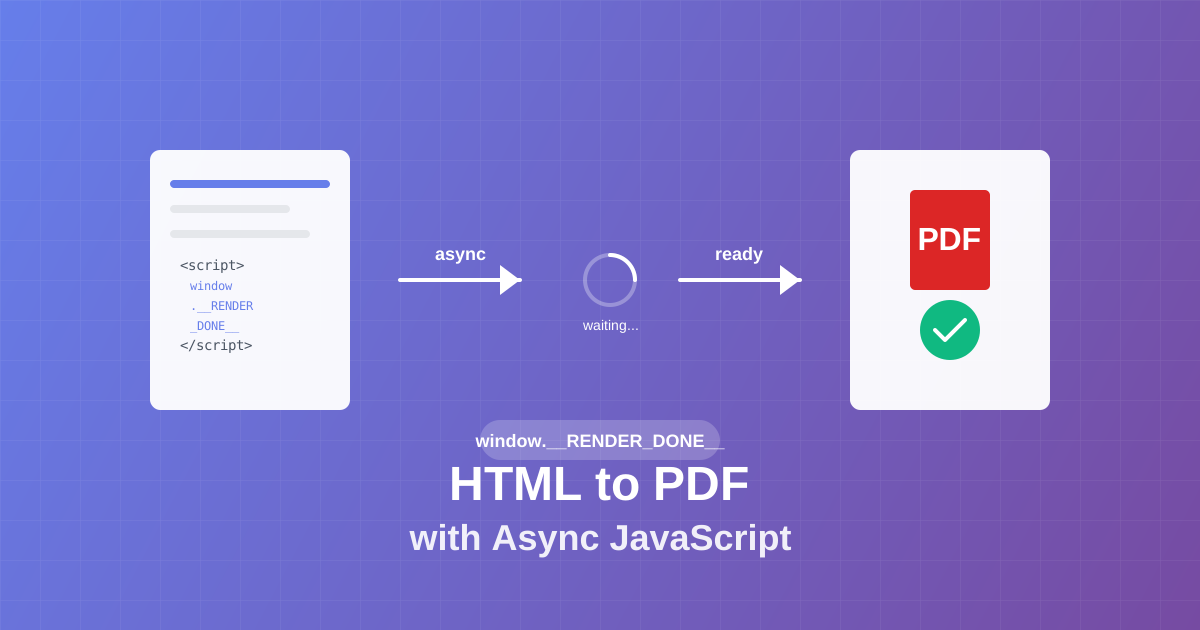
Master async JavaScript execution in PDF generation. Learn the window.__RENDER_DONE__ pattern for reliable HTML to PDF conversion with QR codes, charts, and dynamic content.
Generate professional PDFs in Power Automate with CustomJS. Create invoices, receipts, reports, and certificates with custom HTML templates, QR codes, and advanced formatting. No Azure Functions required.
Learn how to automate PDF generation in Make.com with CustomJS. Step-by-step guide with templates for invoices, HTML to PDF, and page extraction. 600 free PDFs/month.
Creating professional HTML invoices that convert perfectly to PDF is essential for any business. 5 beautiful invoice templates with live PDF generators.
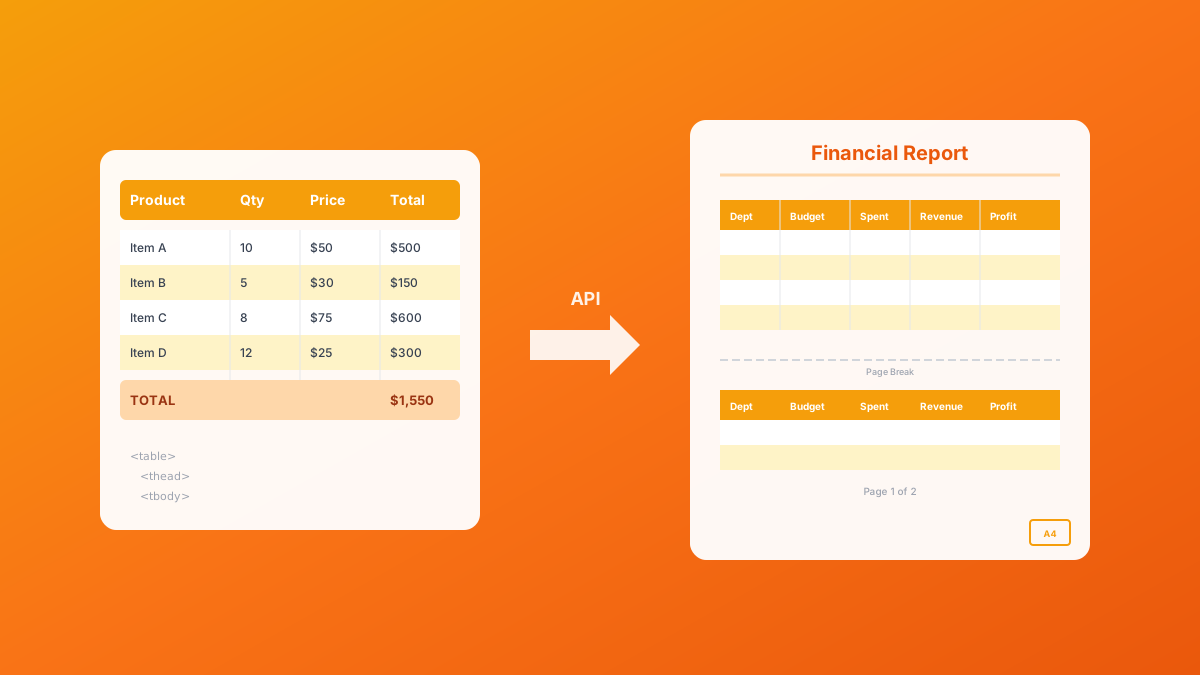
Master HTML table to PDF conversion with landscape orientation, page breaks, and responsive patterns. Complete guide with examples for financial reports, data exports, and invoices. 600 free conversions/month.
Create professional HTML receipt templates that convert perfectly to PDF. Use our free receipt PDF generator or choose from 5 customizable templates for e-commerce, SaaS, and service businesses.
Deploy HTML pages instantly without server setup. Perfect for QR code landing pages, event forms, and promotional campaigns. Automatic HTTPS, custom domains, Make.com & n8n integration. 600 free pages/month.
Convert Markdown to PDF with tables, code blocks, and custom styling. Complete guide with examples for API documentation, reports, and automated workflows. 600 free conversions/month.
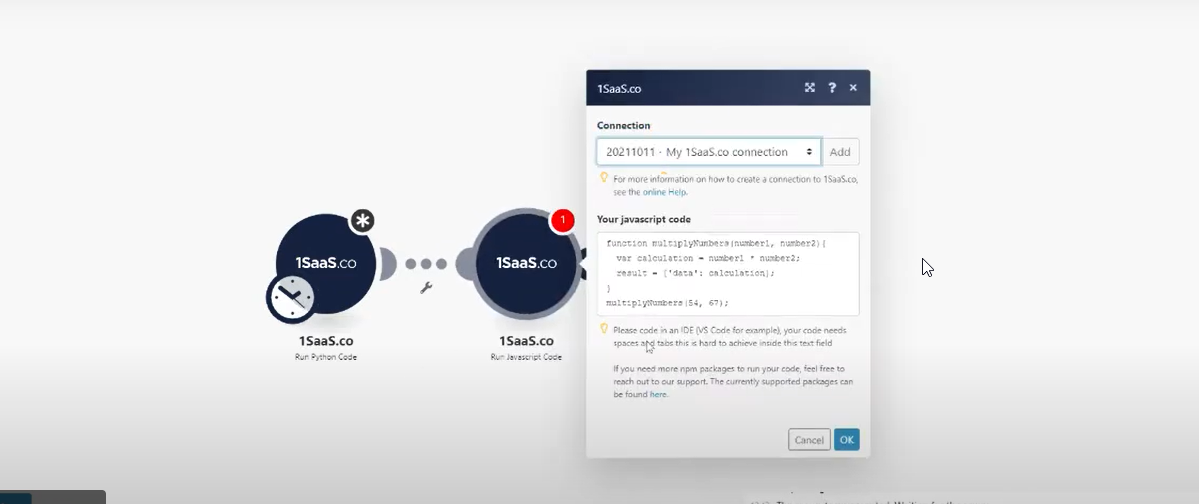
If you want to improve your workflow in Make with JavaScript, there are some powerful tools available. Two of the best options are 0CodeKit and CustomJS.