HTML to PDF Generation in Power Automate
Generate professional PDFs from HTML templates directly in your Microsoft Power Automate flows. Perfect for invoices, receipts, reports, certificates, and any document that requires custom styling and layouts.
📖 Want a complete step-by-step guide? Check out our Power Automate PDF Generation Tutorial with screenshots, QR code examples, and best practices.
Quick Start Guide
Step 1: Get Your API Key
- Visit customjs.space and click Sign in
- Complete registration by either providing your email and password or using your Google account
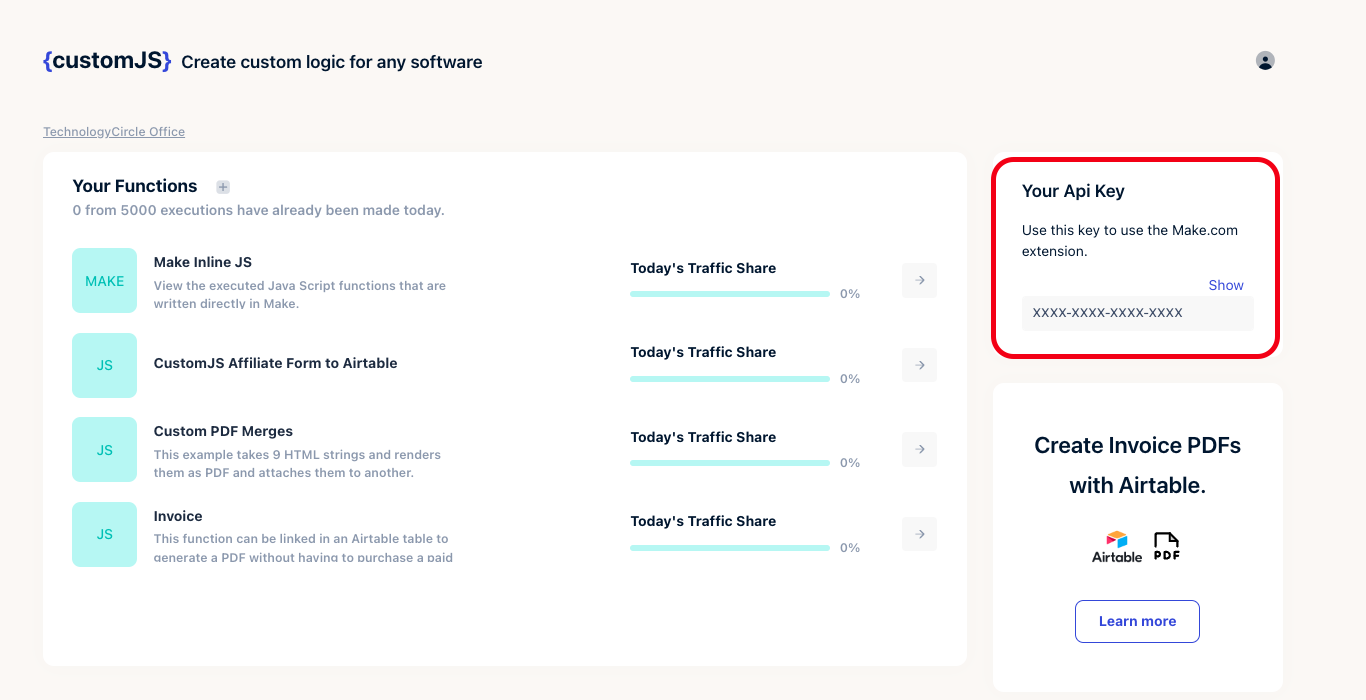
- Once registered, you will be redirected to the CustomJS app dashboard
- Click Show under API Key to reveal your API key
- Copy your API key for the next step
Step 2: Create Connection in Power Automate
- Open your Power Automate flow
- Add a new action and search for "CustomJS"
- Select "HTML to PDF" action
- When prompted, create a new connection:
- Connection Name: CustomJS (or any name you prefer)
- API Key: Paste your API key from Step 1
- Click Create

Step 3: Find the HTML to PDF Module
- In your Power Automate flow, click + New step
- Search for "CustomJS"
- Select the "HTML to PDF" action from the list

Step 4: Add Your HTML Code
- In the HTML Content field, paste your HTML template
- You can use static HTML or insert dynamic content from previous steps
- The action returns a base64-encoded PDF ready for email or storage

What you get:
- ✅ 600 free PDFs per month
- ✅ Full HTML5, CSS3, and JavaScript support
- ✅ QR codes, barcodes, and custom fonts
- ✅ No Azure Functions or complex setup needed
HTML Input
The action accepts complete HTML documents with embedded CSS and JavaScript. You can:
- Use inline CSS for styling (recommended for PDFs)
- Include custom fonts via
@font-faceor web fonts - Add QR codes, barcodes, charts using JavaScript libraries
- Use dynamic content from Power Automate variables
Example: Simple Invoice
<!DOCTYPE html>
<html>
<head>
  <style>
    body { font-family: Arial, sans-serif; padding: 40px; }
    .header { text-align: center; margin-bottom: 30px; }
    .invoice-details { margin: 20px 0; }
    table { width: 100%; border-collapse: collapse; }
    th, td { padding: 10px; text-align: left; border-bottom: 1px solid #ddd; }
  </style>
</head>
<body>
  <div class="header">
    <h1>INVOICE</h1>
    <p>Invoice #12345</p>
  </div>

  <div class="invoice-details">
    <p><strong>Bill To:</strong> John Doe</p>
    <p><strong>Date:</strong> 2025-01-14</p>
  </div>

  <table>
    <thead>
      <tr>
        <th>Item</th>
        <th>Quantity</th>
        <th>Price</th>
        <th>Total</th>
      </tr>
    </thead>
    <tbody>
      <tr>
        <td>Web Development</td>
        <td>10 hours</td>
        <td>$100</td>
        <td>$1,000</td>
      </tr>
    </tbody>
  </table>

  <div style="text-align: right; margin-top: 30px;">
    <h2>Total: $1,000</h2>
  </div>
</body>
</html>
Using Dynamic Content
The best practice is to use a Data Operation - Compose action to map your trigger data to clean field names, then reference those fields in your HTML template.
Advanced PDF Features
📦 Using External JavaScript Libraries (QR Codes)
You can use external JavaScript libraries like QRCode.js in your PDF templates. When using ES Modules, wrap your import in a module script tag:
<script type="module">
  import QRCode from 'https://cdn.jsdelivr.net/npm/[email protected]/+esm';

  // Generate QR code
  const qrDataUrl = await QRCode.toDataURL('https://example.com', {
    width: 150,
    margin: 1
  });

  // Set the image source
  document.getElementById('qr').src = qrDataUrl;
</script>

<img id="qr" alt="QR Code" />⏱️ Async Rendering with window.__RENDER_DONE__
When using asynchronous JavaScript (QR codes, charts, API calls), you must signal when your content is ready by setting window.__RENDER_DONE__ = true. The PDF generator waits for this flag before capturing the page.
<script type="module">
  import QRCode from 'https://cdn.jsdelivr.net/npm/[email protected]/+esm';

  // Initialize as false
  window.__RENDER_DONE__ = false;

  async function generateQR() {
    // Your async operations
    const qrDataUrl = await QRCode.toDataURL('https://example.com');
    document.getElementById('qr').src = qrDataUrl;

    // Signal that rendering is complete
    window.__RENDER_DONE__ = true;
  }

  // Start generation
  if (document.readyState === 'loading') {
    document.addEventListener('DOMContentLoaded', generateQR);
  } else {
    generateQR();
  }
</script>
⚠️ Important: Without setting window.__RENDER_DONE__ = true, your PDF may be blank or incomplete because the generator won't wait for async operations to finish!