HubSpot PDF API: 3 Ways to Generate PDFs From Your CRM Data
HubSpot holds everything you need to build a document (the contact, the company, the deal amount, the line items), but it has no native way to export that data as a branded PDF. The Quotes tool comes close, yet it is bound to Sales Hub Professional and locked to HubSpot's own templates, so the moment you need your real fonts, a gradient header, a table of contents, or a signature block, you are stuck.
The reason this feels harder than it should is that most PDF-fill tools want you to rebuild the design from scratch, and most "easy" HubSpot integrations route everything through Zapier or Make. You can skip both. With a HubSpot PDF API pattern, a single function reads a record's properties and fills a PDF template you designed once: an invoice, an NDA, a quote, a certificate, an onboarding doc.
This guide shows three ways to wire it up, ramped from simplest to most automated: a free no-code link, a one-click dynamic link, and a fully hands-off workflow. Pick the row that matches your HubSpot tier. This is the integration-specific recipe from our broader work on HTML to PDF conversion.
TL;DR
HubSpot stores the data but has no branded-PDF export; the Quotes tool is plan-gated and template-locked.
The core is one CustomJS function: take a record ID, fetch the contact from the HubSpot API, fill your PDF Template's fields, return the PDF.
Option 1 (Free tier): a static link on the record opens a hosted "enter ID" page that redirects to the function. No paid HubSpot plan.
Option 2 (Sales Hub Professional): a workflow writes a per-record link with the ID baked in, so the document is one click from the record.
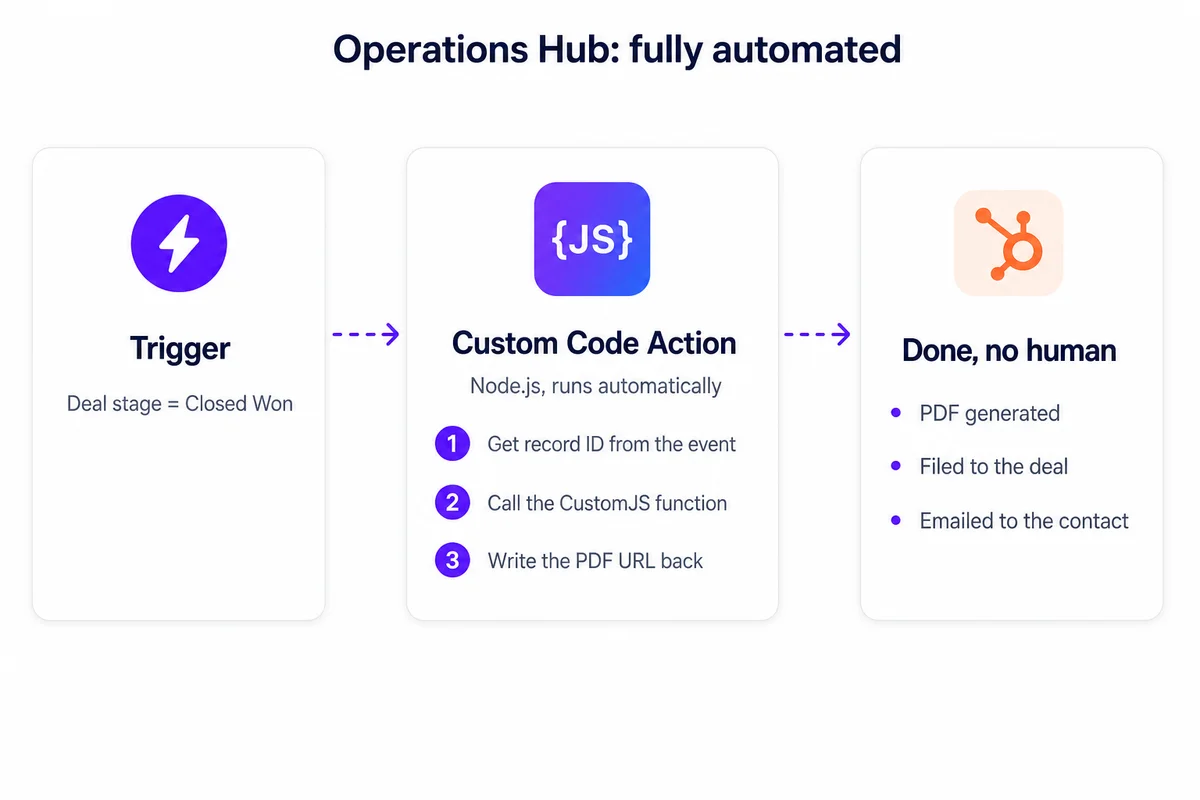
Option 3 (Operations Hub): a workflow custom-code or webhook action calls the function directly, with no human and no middleware.
600 PDFs per month are free, no credit card, and the same function powers invoices, NDAs, quotes, and certificates.
What You Can Build From HubSpot Data
Once a function can read a HubSpot record and render a template, the document type is just a different template fed the same way. The common ones teams ship first:
Invoices & quotes: deal amount and line items into a branded layout with totals and tax.
NDAs & contracts: contact and company fields merged into legal boilerplate, auto-sent on deal close.
Certificates: name, course, and date into a designed certificate with a serial number and QR verification link.
Onboarding docs: a welcome packet personalized from the contact's properties.
This article uses an invoice as the running example because it exercises every part of the pattern (nested data, a repeating line-item table, computed totals), but everything here applies unchanged to the others.
How It Works in 30 Seconds
There are two mental models for getting CRM data into a template, and the three options are really just variations on them:
Params into template: the link carries the data (or an ID) directly in the URL.
ID triggers a fetch: the link carries only the record ID, and the function calls the HubSpot API to pull fresh properties at render time.
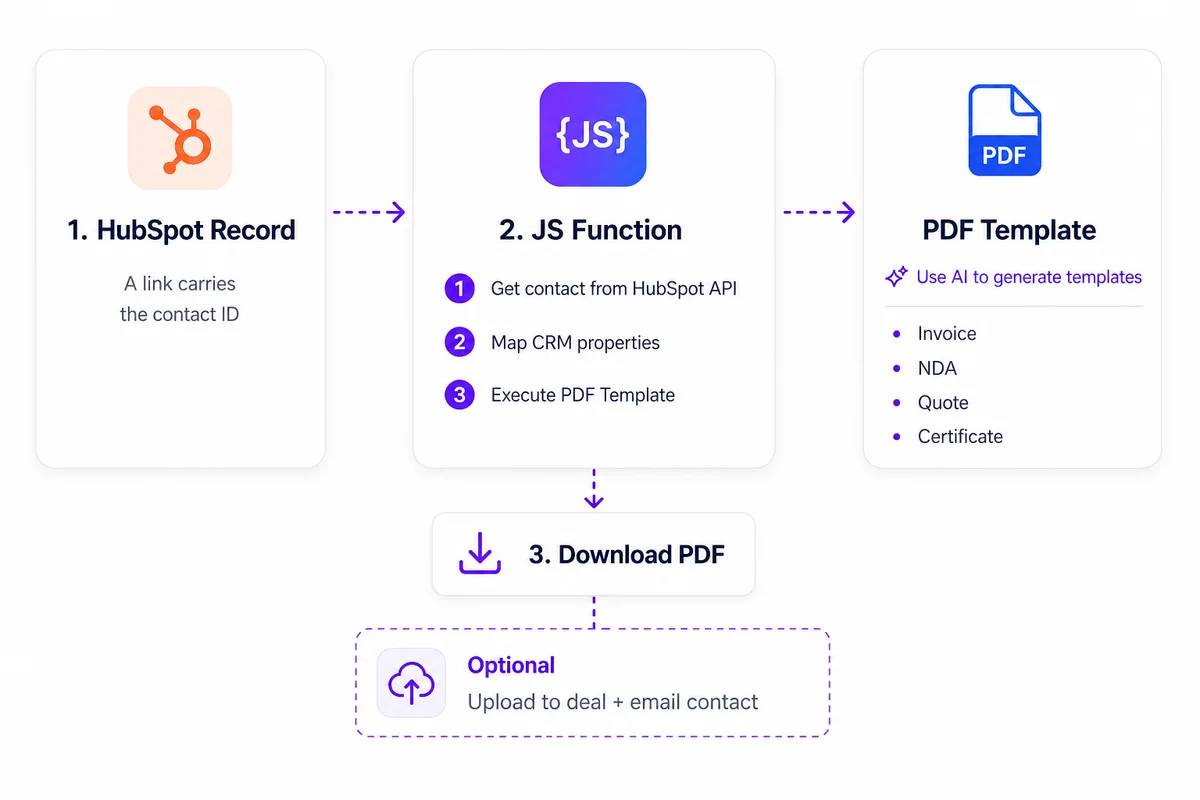
We use the second model everywhere because it keeps URLs short and the data always current. Here is the whole round trip:
The whole round trip: a record ID goes in, a branded PDF comes out. The same flow powers all three options below.
Prerequisite: A HubSpot Service Key
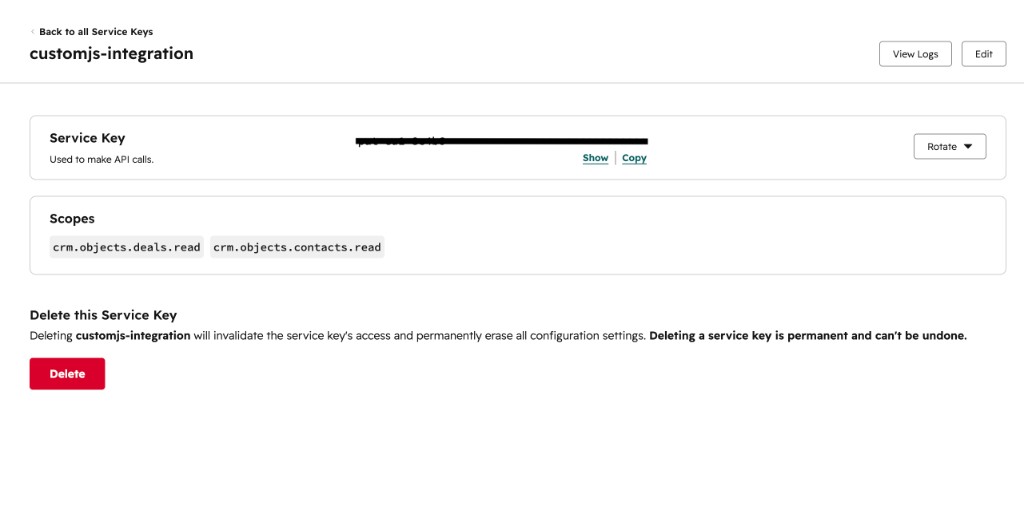
All three options read data through the HubSpot CRM API, which needs an access token. For a single-account, data-only integration like this, HubSpot now recommends a Service Key, the modern, fully-supported replacement for the old private-app token. Go to Development → Keys → Service keys (also at Settings → Integrations → Service Keys), click Create service key, give it a descriptive name (e.g. customjs-contacts-read), add the CRM read scopes you need (crm.objects.contacts.read, and crm.objects.deals.read if you render deal data), then create it and copy the key. It is used as a normal bearer token, so keep it as a constant inside the stored function (server-side), never in the link or the page.
You will need Super Admin or Developer Tools access to create one. Service Keys cannot authenticate webhooks, but that does not matter here, since the key is only used by the CustomJS function to read from HubSpot; the triggering in Options 2 and 3 is HubSpot calling out to CustomJS, which uses no key at all. (If you ever do need an inbound webhook, a legacy private app remains the fallback; the token works identically.)
A HubSpot Service Key with the CRM read scopes (crm.objects.contacts.read and crm.objects.deals.read) selected, and the key ready to copy.
The Shared Engine: One CustomJS Function
Every option below calls the same function. It accepts a contactId, fetches that contact from HubSpot, fills the PDF Template's fields with the properties, and returns a PDF. Write it once; reuse it for all three integration styles.
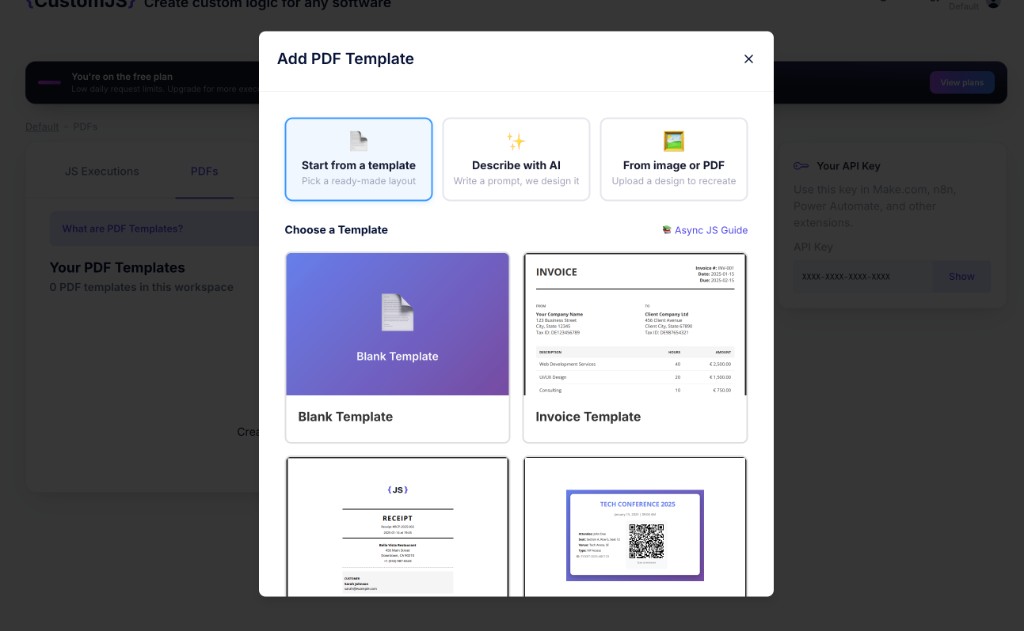
Before writing the function, create the PDF template it will render. In the CustomJS app, open PDF Templates and click Create a PDF template. You can start from a ready-made layout, use Describe with AI to generate a branded design from a prompt, or upload an existing image or PDF to recreate. A template combines an HTML layout with parameters that your function passes in when it renders the PDF. Once saved, it becomes available inside any function via the Insert PDF Template button in the code editor toolbar.
Creating a PDF Template in CustomJS: pick a ready-made layout (invoice, receipt, certificate), describe what you need with AI, or upload a design to recreate.
The function
With the template saved, create a new JS Execution and use the AI Function Generation to build it for you. Describe what the function should do in plain language, and name the template you want it to import so the AI wires it in; something like:
Create a JS function which receives a HubSpot contactId as a GET parameter,
then pulls all necessary properties from the HubSpot API
and imports my "Invoice" PDF Template to generate the PDF.
Because the prompt names the template, the AI imports it with its ID and fields already filled in, alongside the HubSpot API call. You just need to add your Service Key. The result will look like this:
// CustomJS stored script: "HubSpot contact -> invoice PDF"
// Called as: https://e.customjs.io/<script-id>?contactId=12345
const { PDF_BY_TEMPLATE } = require('./utils');
const axios = require('axios').default;

// Kept inside the stored function (server-side), never in the link or page.
const HUBSPOT_TOKEN = 'pat-eu1-xxxxxxxx-xxxx-xxxx-xxxx-xxxxxxxxxxxx';

// Accept the record ID from the query string (?contactId=...)
const contactId = input.contactId;

// 1. Fetch the contact from HubSpot by ID
const res = await axios.get(
  'https://api.hubapi.com/crm/v3/objects/contacts/' + contactId,
  {
    params: { properties: 'firstname,lastname,email,company,address' },
    headers: { Authorization: 'Bearer ' + HUBSPOT_TOKEN },
  }
);
const p = res.data.properties;

// 2. Render the PDF Template with the contact's data
//    ('zJfQWl' is the template's ID, wired in by the AI)
const pdfData = await PDF_BY_TEMPLATE('zJfQWl', {
  invoiceNumber: 'INV-' + contactId,
  createdDate: new Date().toISOString().slice(0, 10),
  dueDate: new Date(Date.now() + 30 * 24 * 60 * 60 * 1000).toISOString().slice(0, 10),
  companyLogo: '', // URL or base64 of logo
  senderName: 'Your Company',
  senderAddress1: '123 Your Street',
  senderAddress2: 'Your City, Your State',
  senderTax: 'TAX123456',
  senderIban: 'IBAN123456789',
  senderBic: 'BIC12345',
  receiverName: ((p.firstname || '') + ' ' + (p.lastname || '')).trim(),
  receiverAddress1: p.address || '',
  receiverAddress2: '',
  receiverTax: '',
  items: JSON.stringify([
    { description: 'Professional services', quantity: 1, unitPrice: 500.00, total: 500.00 },
  ]),
  currency: 'USD',
  subTotal: 500.00,
  taxRate: 0.20,
  taxAmount: 100.00,
  total: 600.00,
  footerText: 'Thank you for your business.',
  footerText2: 'If you have any questions about this invoice, please contact us.',
});

return pdfData;
PDF_BY_TEMPLATE and axios are bundled in the function runtime; see the native API documentation for the full list. The Service Key stays at the top of the function (server-side, never exposed). PDF_BY_TEMPLATE takes the template's ID plus an object with the template's fields; repeating data like line items goes in as a JSON string. Because the design lives in the template, you can restyle the invoice in the template editor without touching the function code.
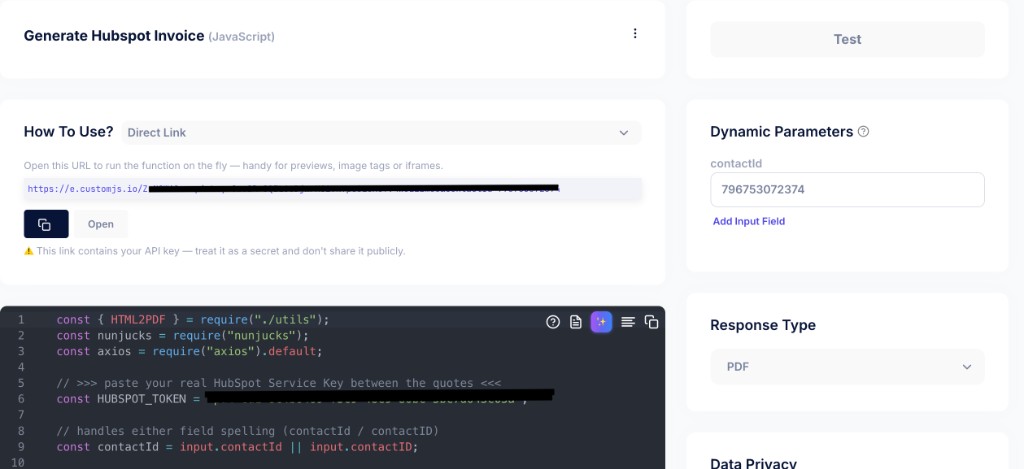
The shared function in the CustomJS editor, with its unique invocation URL at the top.
Saved, the function gets a unique URL. Calling it with a record ID returns the PDF directly. That single line is the entire "API," and it is what the next three options point at:
# The function URL IS your HubSpot PDF API
curl 'https://e.customjs.io/your-function-id?contactId=12345' \
  -H 'x-api-key: YOUR_API_KEY' \
  > invoice.pdf
Option 1 · Free Tier: A Static Link + Hosted "Enter ID" Page
HubSpot's Free tier has no workflows, so there is no native way to build a per-record link with each contact's ID baked in; any link you place on a record is static and identical for every record. That changes how the ID gets passed in, not whether the PDF works. The static link points at a small hosted page that asks for the ID and then redirects to the function. You host that page on CustomJS's HTML hosting so there is no separate site to maintain.
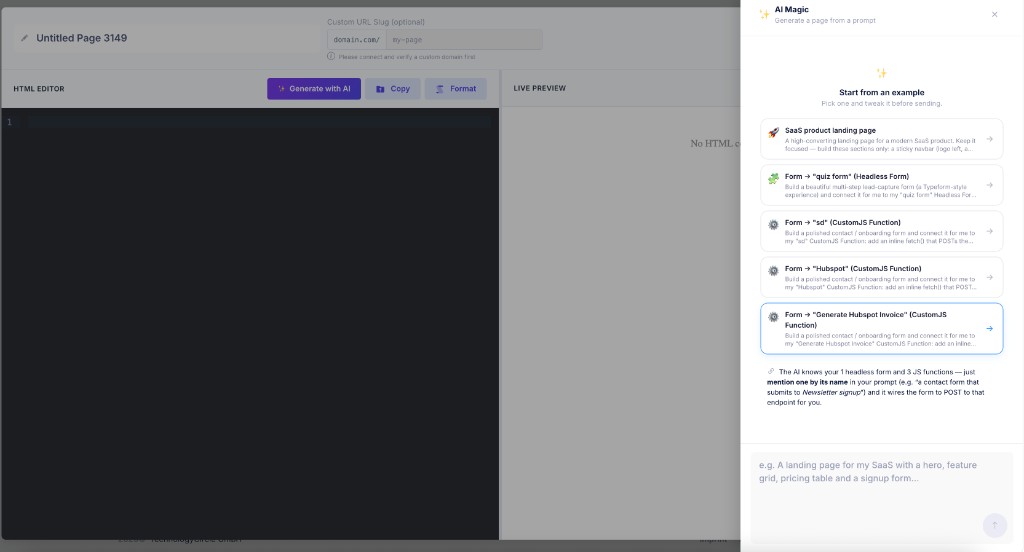
You can build this page in seconds with the AI Page Generation. In the CustomJS app open HTML Pages, describe what you need (e.g. "A page that asks for a HubSpot contact ID and redirects to my Invoice function"), and the AI will generate the hosted page with the form and redirect wired up for you.
The AI Page Generation modal in CustomJS. Describe the page you need and the AI builds it, automatically wiring it to your function.
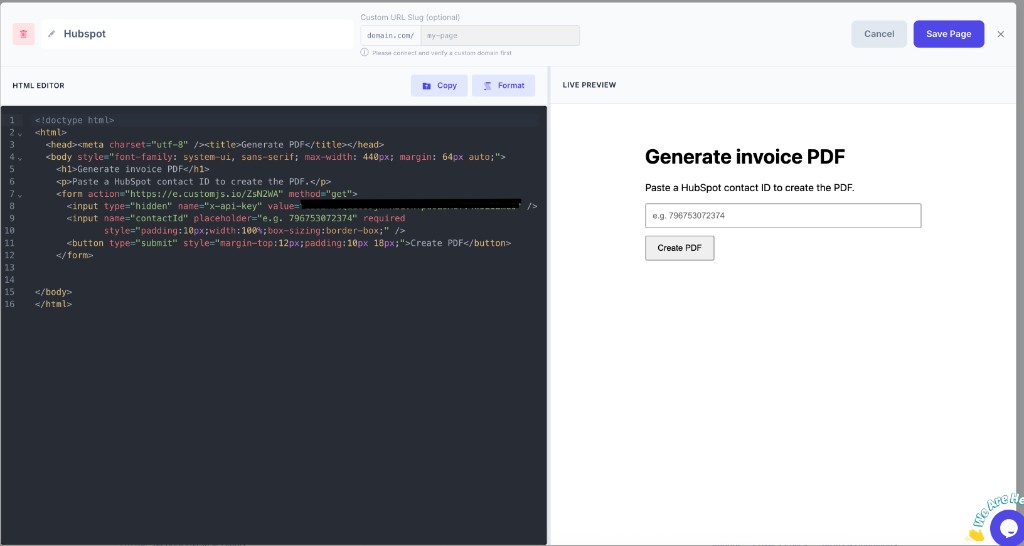
If you prefer to write the HTML yourself, paste the markup below instead:
<!doctype html>
<html>
  <head><meta charset="utf-8" /><title>Generate PDF</title></head>
  <body>
    <h1>Generate invoice PDF</h1>
    <p>Paste a HubSpot contact ID to create the PDF.</p>
    <!-- A plain GET form: the browser builds ?x-api-key=...&contactId=... -->
    <form action="https://e.customjs.io/your-function-id" method="get">
      <input type="hidden" name="x-api-key" value="YOUR_CUSTOMJS_API_KEY" />
      <input name="contactId" placeholder="Paste the contact ID" required />
      <button type="submit">Create PDF</button>
    </form>
  </body>
</html>
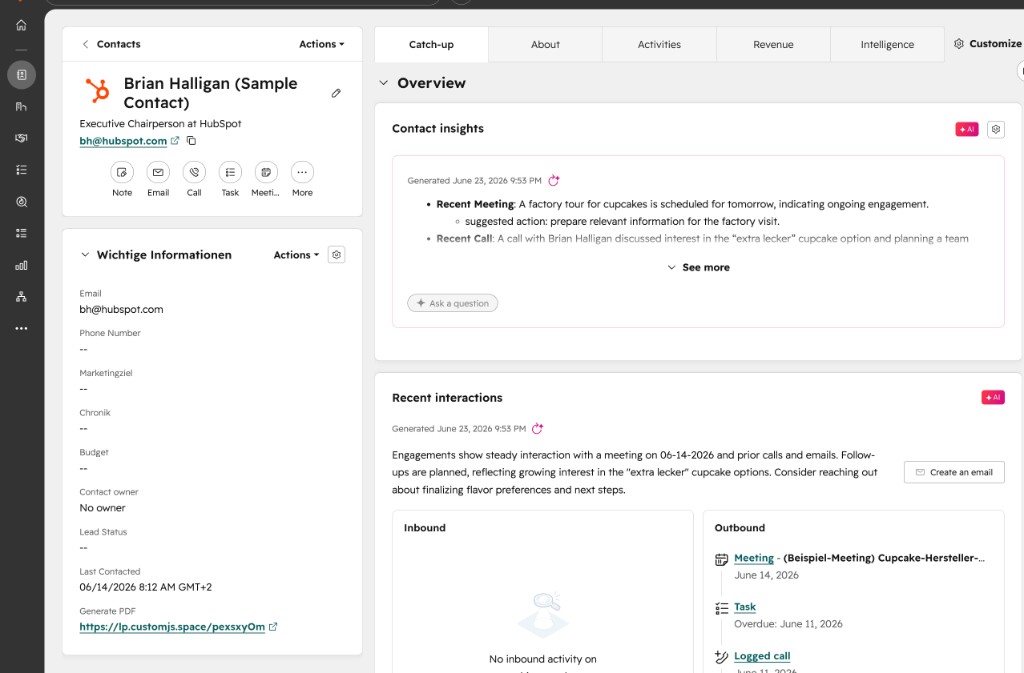
Either way, surface the page's URL on every record as a clickable property. Here is the full free-tier setup:
Host the page. In the CustomJS app open HTML Pages, use the AI or paste the HTML above (with your function ID and API key filled in), and Save Page. Copy the public URL it returns, e.g. https://lp.customjs.space/abc123. Because a clicked link can't send a header, the key lives in this page, so treat the URL as internal.
Create the property. In HubSpot go to Settings → Data Management → Properties → Contact properties → Create property. Label it Generate PDF and pick field type Single-line text.
Show it on the record. Open any contact, click the gear on the "About" card (Edit default card), choose Add properties, search Generate PDF, add it, and save.
Set the link. Paste your hosted-page URL as the property's value, or set it as the property's default value so it appears on every record automatically.
Use it. A rep opens the contact, clicks Generate PDF, pastes the contact ID, and the branded PDF opens. Everything that matters works on $0 (API access, the data fetch, the render); the only thing you trade is a one-time ID paste.
The hosted "Enter contact ID" page in the CustomJS HTML Pages editor, with its live preview.
The same link surfaced on a HubSpot contact record as the clickable Generate PDF property.
Option 2 · Sales Hub Professional: A One-Click Dynamic Link
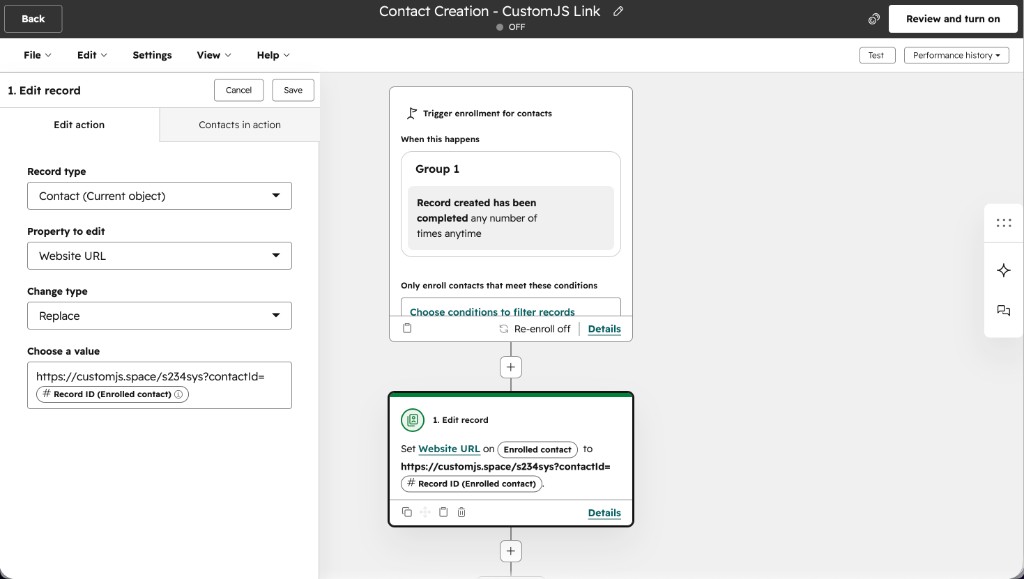
The moment you move up to Sales Hub Professional, workflows unlock and the manual paste disappears. Build a workflow that fires on a trigger of your choice (for example, when a new lead is created) and have it write a custom property (call it PDF link) whose value is the function URL with that record's ID already baked in as a GET parameter. Use a "Set property value" action and HubSpot's personalization token for the object ID:
# Workflow action: Set property value -> "PDF link"
# Use HubSpot's personalization token for the record ID:
https://e.customjs.io/your-function-id?contactId={{ contact.hs_object_id }}

# Result on every record (rendered by HubSpot):
https://e.customjs.io/your-function-id?contactId=701451234
Now every record carries its own working link. The rep opens the contact, clicks PDF link, and the branded document renders, with no IDs, no copy-paste, and no leaving HubSpot. This is the sweet spot for invoices and quotes that a human reviews before sending.
A contact-created workflow whose "Set property value" action writes the function URL with the record's ID token, producing a unique link on every record.
Option 3 · Operations Hub: Fully Automated, No Human
If you have Operations Hub, a workflow's custom-code action can call the function directly when something happens (a deal moves to Closed Won, a form is submitted, a property changes) and write the result back to the record. No human ever clicks anything. (No Ops Hub? A workflow webhook action, or a Make.com / n8n scenario, does the same thing from outside HubSpot.)
// HubSpot Workflow > Custom code action (Operations Hub, Node.js)
const axios = require('axios');

exports.main = async (event, callback) => {
  // Fires on your trigger, e.g. deal stage = Closed Won
  const contactId = event.object.objectId;

  // Call the same CustomJS function that powers Options 1 and 2
  await axios.get(
    'https://e.customjs.io/your-function-id?contactId=' + contactId,
    { headers: { 'x-api-key': process.env.CUSTOMJS_API_KEY } }
  );

  // Optionally write the PDF URL back to a HubSpot property here
  callback({ outputFields: { status: 'pdf_generated' } });
};
This is the right fit for documents that should fire on an event rather than a click: NDAs and contracts on deal close, certificates on course completion. Operations Hub is a higher tier, so the diagram below shows the shape of the flow; the code above is exactly what goes inside the custom-code action.
How the Operations Hub path fits together: a trigger fires the custom-code action, which calls CustomJS and stores the resulting PDF URL, with no human in the loop.
Which Option Should You Choose?
Match the row to your HubSpot tier and how hands-off the document needs to be.
Option
HubSpot tier
Automation
Manual step
Best for
1 · Static link + ID page
Free
Manual
Paste the contact ID
Occasional certificates, simple docs
2 · Dynamic per-record link
Sales Hub Professional
One click
None (click the link)
Invoices & quotes a human reviews
3 · Workflow custom code
Operations Hub
Fully automated
None (hands-off)
NDAs & contracts on deal close
All three call the identical function, so you can start on the free tier and graduate to full automation later without rewriting anything.
One Function, Many Templates
Because the function only renders whatever template you point it at, the same engine produces an invoice, a certificate, or an NDA. Create each design as its own PDF Template in CustomJS (or let the AI generate one for you), then swap which template the function references. The code stays the same; only the template changes.
Invoice: a line-item layout with totals and tax rows, like the running example above.
Certificate: a gradient-bordered certificate with a serial number and a QR verification link.
NDA: a clean, legal-style document with a signature block, ideal for the Option 3 auto-send flow.
To switch templates, ask the AI assistant in the editor to swap in a different saved template (or use Insert PDF Template in the toolbar); the PDF_BY_TEMPLATE call is regenerated with the new template's ID and fields. For documents that need a chart, barcode, or QR code, render them with JavaScript inside the template and signal completion; see rendering JavaScript before PDF capture.
Writing the PDF Back to HubSpot or the Inbox
Generating the PDF is half the job; most teams also want it filed and sent. After the function returns the document, an automation step can upload it to the deal record via the HubSpot Files API and email it to the contact. In Option 3 this lives in the same workflow; in Options 1 and 2 you add a Make.com or n8n step. For the full automation recipes, see PDF generation in Make.com and PDF generation in n8n, and the contract-on-close and proposal patterns in building smart forms with webhooks.
vs. DocSend, PandaDoc & Proposify
If you already pay for HubSpot CRM, a per-seat document tool is often paying twice. PandaDoc, Proposify, and Better Proposals charge $19–$65 per user per month and gate e-sign, CRM sync, and analytics behind higher tiers. The API-first pattern collapses seat pricing: every rep triggers the same function, every function renders the same template, and the cost is just PDFs generated: 600/month free, then flat usage-based pricing. You trade a drag-and-drop editor for a PDF Template you can create with AI or design yourself, which most engineering-led teams consider an upgrade.
Frequently Asked Questions
1. Does this require a paid HubSpot plan?
No. Option 1 works on the free tier with a static link and a hosted ID page. Options 2 and 3 use workflows, which need Sales Hub Professional and Operations Hub respectively, but the underlying function is identical across all three.
2. Can I generate a PDF from a HubSpot deal instead of a contact?
Yes. Change the API call to the deals endpoint and pass the deal's object ID. Add the crm.objects.deals.read scope to the Service Key and map the deal properties (amount, line items, stage) into the template the same way.
3. Do I have to use Zapier or Make?
No. With Operations Hub you call the function from a workflow custom-code action and stay entirely inside HubSpot. Make.com and n8n are the no-code alternatives for teams without Ops Hub, not a requirement.
4. Where does my HubSpot token live?
In a CustomJS variable on the server side, never in the link or the hosted page. The browser only ever sees a record ID, and the token stays out of anything a user can view.
5. Can the same setup produce certificates or NDAs, not just invoices?
Yes. The function renders whatever PDF Template you point it at. Create a new template in CustomJS (or use the AI to generate one), insert it into the function, and adjust the field mapping; the HubSpot fetch and the PDF step stay the same.
6. How many PDFs can I generate for free?
600 per month per account, with no credit card. That covers most invoicing and proposal volumes; beyond it, pricing is flat and usage-based rather than per-seat.
Wrap-up
Generating branded PDFs from HubSpot does not require the Quotes upsell, a per-seat proposal tool, or a middleware subscription. It needs one function that turns a record ID into a document, and a link or workflow to call it. Start free with a static link, upgrade to a one-click dynamic link, and automate it entirely when you are ready; the function never changes.
The free tier covers 600 PDFs a month, which is plenty for invoices, quotes, NDAs, and certificates at most teams' volume. When you outgrow it, the same function keeps working.
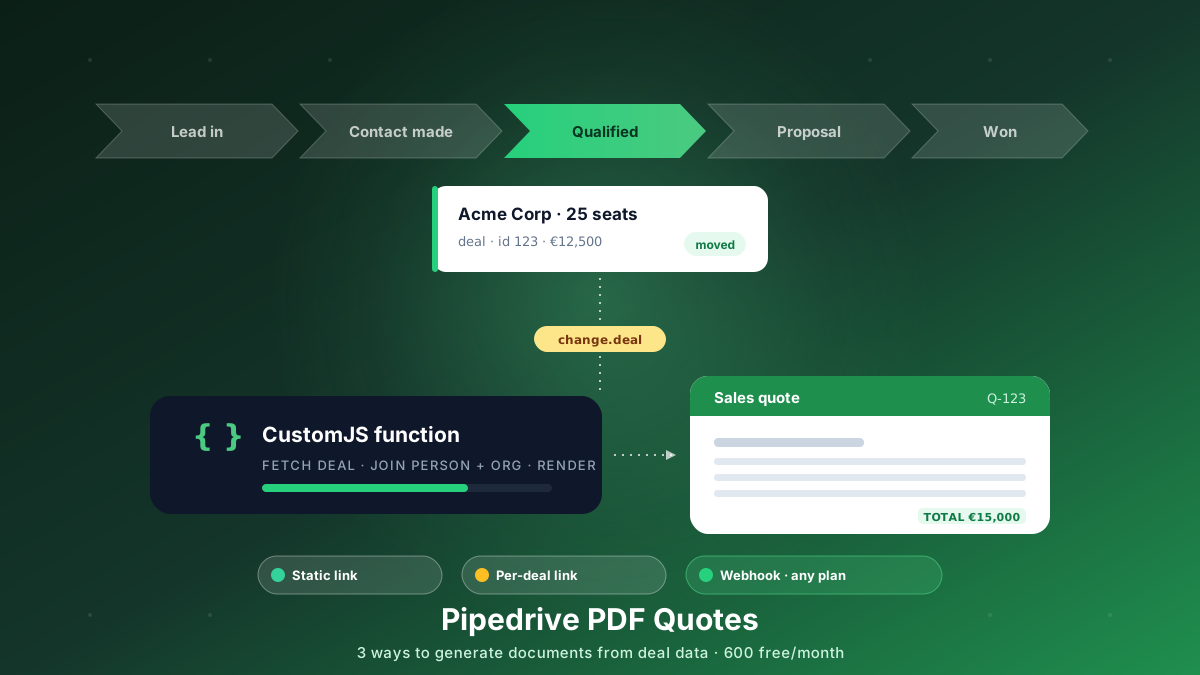
Generate branded PDF quotes, proposals, and contracts straight from Pipedrive deal data. Three approaches, from a free static link to a native webhook that works on every plan. 600 free PDFs/month.
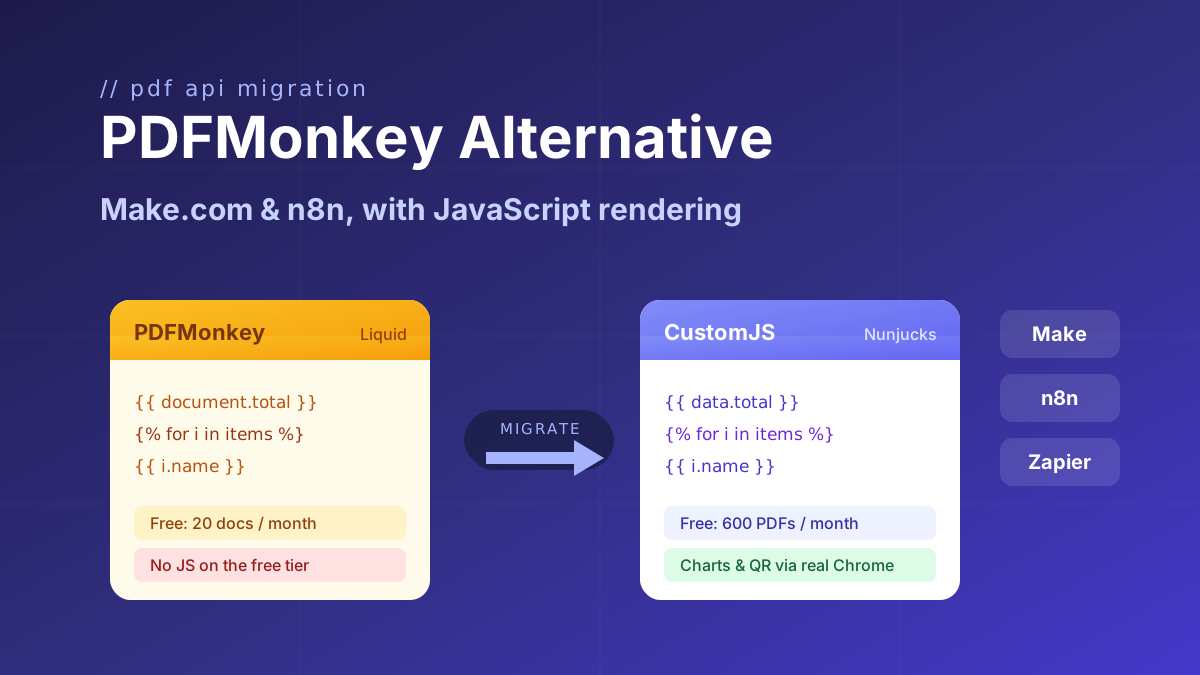
Looking for a PDFMonkey alternative? Compare PDFMonkey vs CustomJS on price, free tier, and JavaScript rendering, with a step-by-step Make.com and n8n migration guide. 600 free PDFs/month.
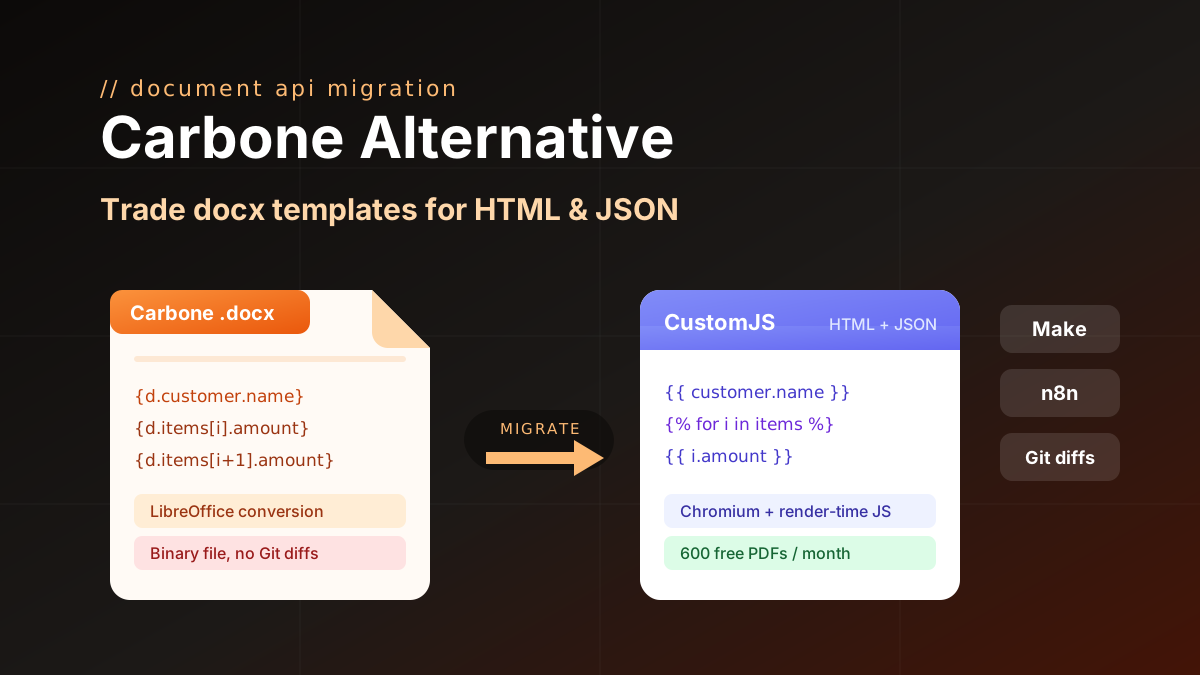
Carbone alternative compared: CustomJS vs Carbone on template model, pricing, and JS rendering, plus a docx to HTML migration guide. 600 free PDFs/month.