Post a Dashboard Screenshot to Slack from n8n
Nobody opens the dashboard. They open Slack. This workflow runs before the working day, signs in to the dashboard with a service account, captures it and posts the image where the team already is. The sign in is the interesting part, because a plain capture has no session.
600 free requests / month, no credit card
- Task
- Capture behind a login
- Platform
- n8n, cloud or self-hosted
- Runs
- Scheduled, weekday mornings
- Output
- PNG posted to Slack
// live preview
Build the interaction first
Add the clicks and the typing the page needs, then capture. Once the sequence works here, it is the same list the workflow sends. Use a page you are allowed to automate against, and never your own password in a shared builder.
// the workflow
Schedule, sign in, capture, post
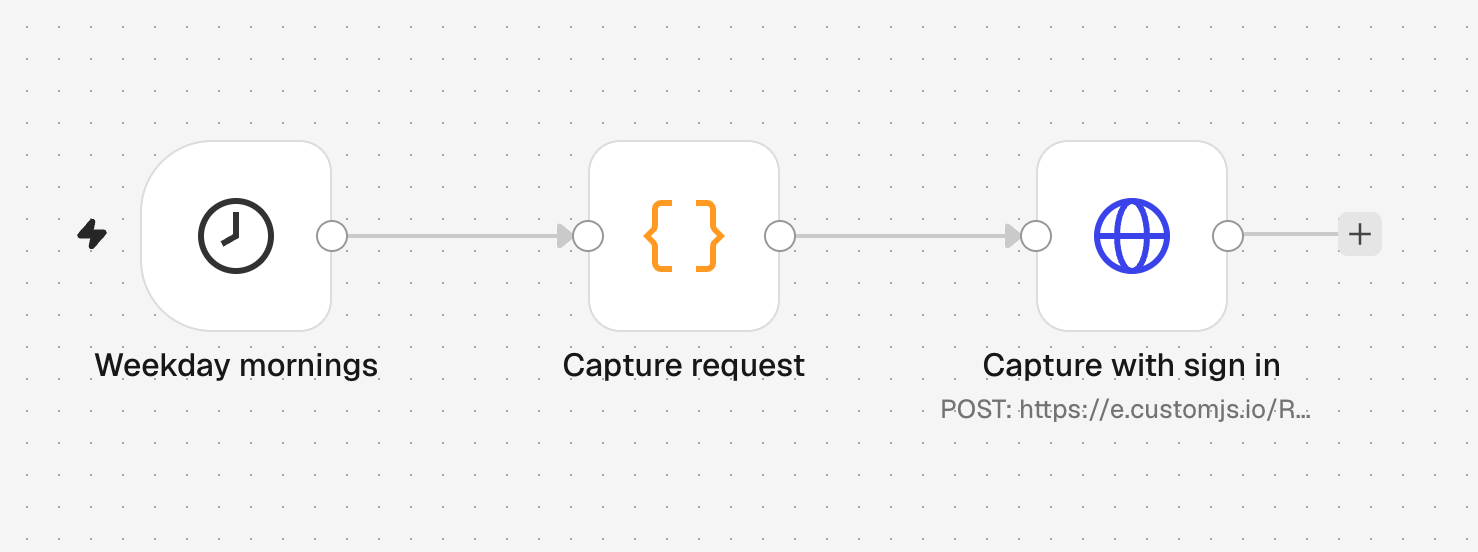
The capture runs through an HTTP Request node rather than the screenshot operation, because the sign in needs commands and the node operation takes a URL only. The body carries the URL and the command list together.
The HTTP Request node body
{
  "url": "https://dashboard.internal.example.com/overview",
  "commands": [
    { "type": "type",  "selector": "input[name=email]",    "value": "={{ $credentials.dashboardUser }}" },
    { "type": "type",  "selector": "input[name=password]", "value": "={{ $credentials.dashboardPass }}" },
    { "type": "click", "selector": "button[type=submit]" },
    { "type": "click", "selector": "[data-range='last-7-days']" }
  ]
}
The stored function behind it
const { SCREENSHOT } = require('./utils');

// input carries both the url and the commands, so one function serves every dashboard
return SCREENSHOT(input);
// step by step
Build it yourself
- 1
Install the CustomJS node
Open the node panel and search for CustomJS. The node is published, so on n8n Cloud it is in the list already and nothing has to be installed. On a self-hosted instance, add it once under Settings, Community nodes as
@custom-js/n8n-nodes-pdf-toolkit-v2. The installation page has the details. - 2
Add your API key
Create a credential of type CustomJS API and paste the key from your workspace. One key covers PDF, screenshots and the other endpoints.
- 3
Use a service account, not your own login
Create a read only account for the capture and store it in n8n credentials. Reusing a personal login puts a password in a workflow body and ties the report to one person leaving the company.
- 4
Work out the command sequence in the builder
Open the visual builder and click through the sign in on a test account. The selectors it produces are the list the workflow sends, which beats guessing at them from the page source.
- 5
Send URL and commands in one request
Use an HTTP Request node pointing at your stored function with
x-api-keyin the header. The screenshot operation on the node takes a URL only, so interactions need the raw call. - 6
Post it where people already look
Upload the file to a Slack channel with a one line caption. A message that says what changed is read, an image on its own is scrolled past.
// what to watch for
Where a login capture goes wrong
Three failures account for most broken morning posts, and all three are worth handling before the first run rather than after the first silent week.
Two factor authentication
// There is no way to type a code nobody has yet.
// Options, in order of preference:
//   1. A service account with 2FA not enforced, limited to read only
//   2. A long lived API token and a chart rendered by you
//   3. A signed share link the dashboard issues for exactly this purpose
Failing loudly when the capture breaks
// IF node after the request: a sign in page is small, a dashboard is not
const bytes = $binary.data.fileSize;

// Under 30 kB almost always means the login failed and you captured the form
return bytes < 30000
  ? [{ json: { ok: false, reason: 'capture looks like a login page' } }]
  : [{ json: { ok: true } }];
A broken capture that posts a picture of a login form every morning is worse than one that posts nothing, because nobody reports it.
Questions about this template
Related templates
One node turns a URL into a PNG inside your workflow. Full page rendering, binary output, ready to upload, attach or post.
Render a 1200 by 630 Open Graph image from an HTML card for every article you publish, without opening a design tool.
A daily capture of the pages you care about, stored with the date, with a notification when the page stops looking like it did yesterday.
Put the dashboard in Slack tomorrow morning
Create a workspace, add the API key, and build the sign in sequence in the builder.