Generate Quote PDFs in n8n
A quote is an invoice with two differences that matter: it expires, and it has to read like an offer rather than a demand. This workflow takes a deal from your CRM, works out the validity date, and renders a document you can send without opening a word processor.
600 free requests / month, no credit card
- Document
- Quote
- Platform
- n8n, cloud or self-hosted
- Nodes
- 3
- Output
- PDF, binary
// live preview
The quote this workflow sends
Change the scope lines or the discount and render it. The same HTML goes into the n8n node, so the file your customer receives looks like this one.
// the workflow
Deal in, quote out
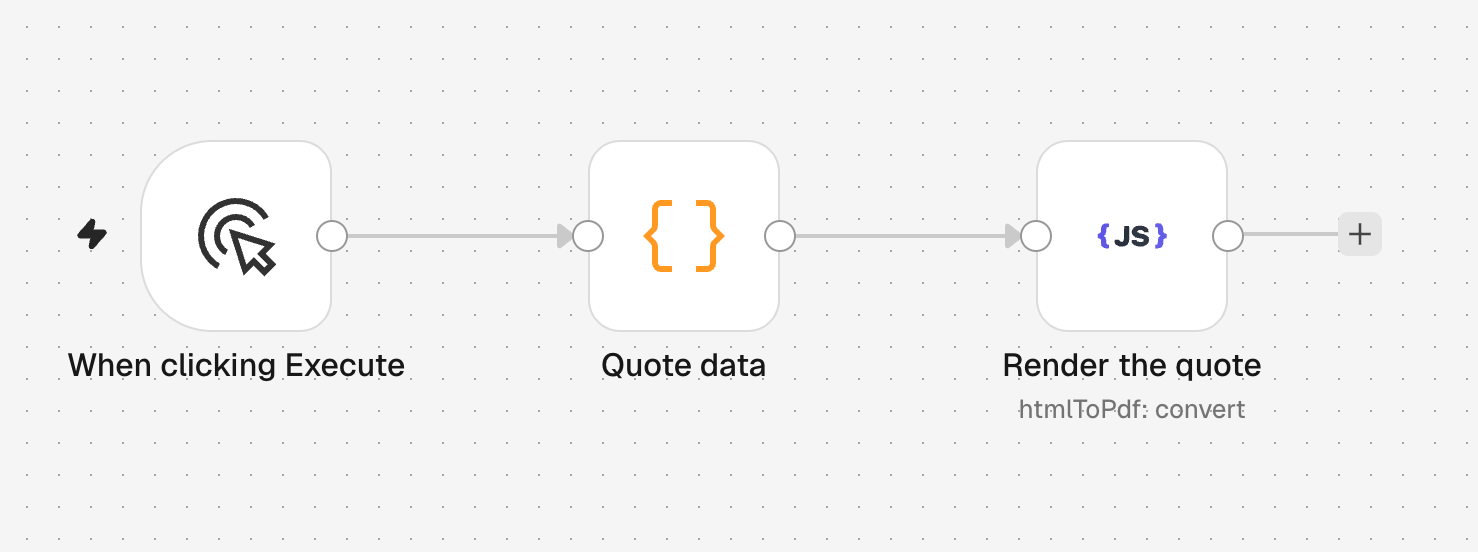
Import the JSON with Workflows, Import from File. The Set node stands in for your CRM so you can run it immediately, then swap it for a HubSpot, Pipedrive or Postgres node once the shape matches.
Calculating the expiry date in the Set node
// 30 days of validity, formatted the way the template prints it
{{ new Date(Date.now() + 30 * 864e5).toLocaleDateString('en-GB', {
     day: 'numeric', month: 'short', year: 'numeric'
   }) }}
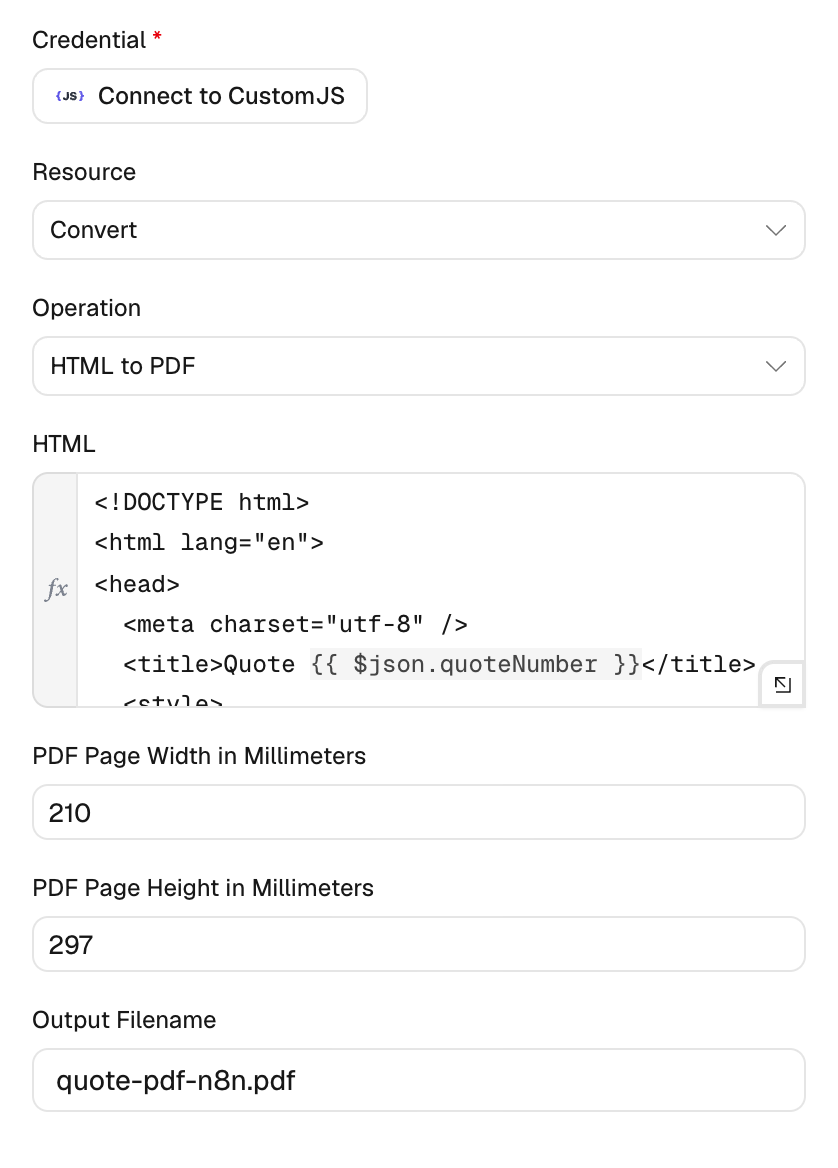
What the node looks like
// step by step
Build it yourself
- 1
Install the CustomJS node
Open the node panel and search for CustomJS. The node is published, so on n8n Cloud it is in the list already and nothing has to be installed. On a self-hosted instance, add it once under Settings, Community nodes as
@custom-js/n8n-nodes-pdf-toolkit-v2. The installation page has the details. - 2
Add your API key
Create a credential of type CustomJS API and paste the key from your workspace. One key covers PDF, screenshots and the other endpoints.
- 3
Map your deal onto the quote fields
A quote needs a number, a validity date, the scope lines and the totals. If your CRM stores products as a related table, fetch them first and collect them into one array before the PDF node.
- 4
Let the workflow set the expiry
Do not store the validity date by hand. Calculate it in the Set node from the moment the quote is generated, so a quote regenerated next week carries next week's date.
- 5
Send it and record the link
After the PDF node, attach the file to an email and write the file ID back to the deal. That record is what lets a later workflow tell an accepted quote from an expired one.
// html template
What makes it a quote and not an invoice
Three details carry the difference, and all three live in the template rather than in the workflow logic.
Expiry and status
<span class="badge">Quote</span>
<div class="num small muted">
  <div>Prepared {{ issueDate }}</div>
  <div><strong>Valid until {{ validUntil }}</strong></div>
</div>

<div class="foot">{{ owner.company }} · This quote is not an invoice</div>
Scope lines with a description
{% for item in items %}
<tr>
  <td>
    <strong>{{ item.title }}</strong><br />
    <span class="small muted">{{ item.detail }}</span>
  </td>
  <td class="num">{{ item.days }}</td>
  <td class="num">{{ (item.days * item.rate).toFixed(2) }}</td>
</tr>
{% endfor %}
When the quote is accepted, the same data can go straight into the invoice template, which is the point of keeping the two documents on one data shape.
Questions about this template
Related templates
Turn invoice data from any n8n node into a finished PDF with one CustomJS node. Importable workflow, editable HTML template, no headless browser to run.
Render a delivery note from an order, with ordered against shipped quantities, carrier details and a signature line. No prices on the document.
A scheduled workflow that sends every customer a statement of their open invoices, with ageing buckets and days late calculated at render time.
Send your next quote from n8n
Create a workspace, add the API key, import the workflow and point it at your CRM.