Generate Invoice PDFs in n8n
Take the invoice data you already have in a workflow, from Airtable, Stripe, a database or a form, and turn it into a finished PDF with a single node. The template below is a working n8n workflow you can import, plus the HTML behind it so the layout stays yours.
600 free requests / month, no credit card
- Document
- Invoice
- Platform
- n8n, cloud or self-hosted
- Nodes
- 3
- Output
- PDF, binary
// live preview
This is the PDF the workflow produces
Edit the fields, render it, and you get the same document the n8n node returns. It runs against the same API, so what you see here is what lands in your workflow.
// the workflow
Three nodes, start to PDF
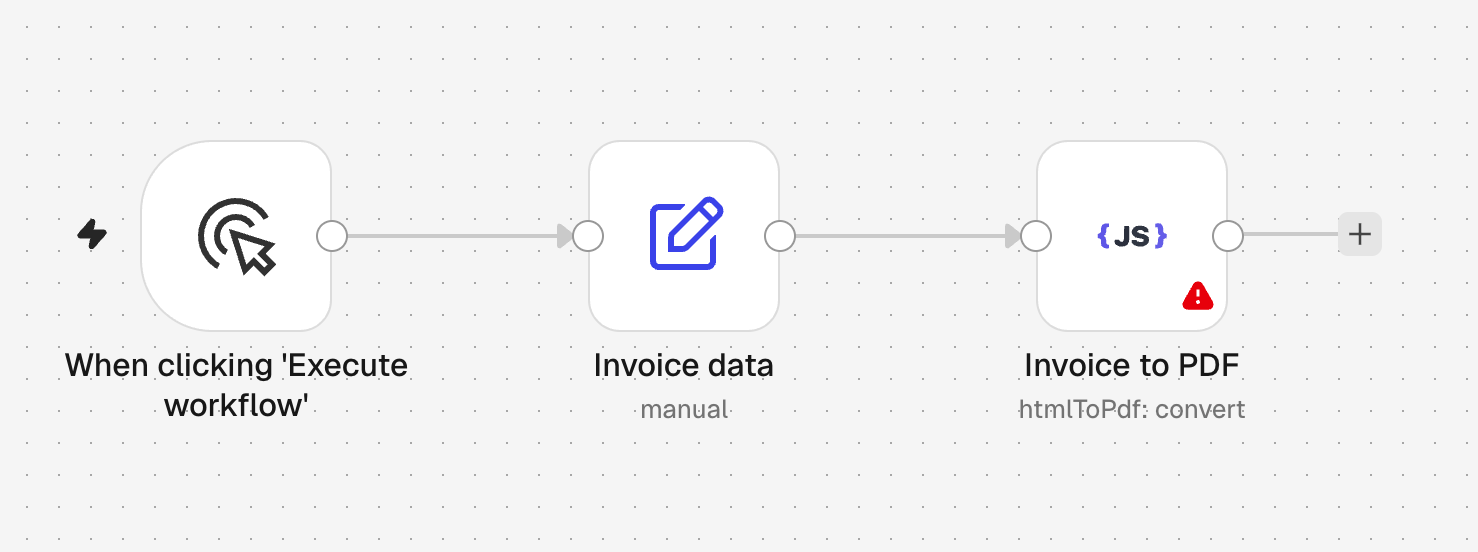
Download the JSON and import it in n8n with Workflows, Import from File, or copy it and paste it straight onto the canvas. The only thing left to set is your CustomJS credential.
The CustomJS node in the exported workflow
{
  "parameters": {
    "resource": "convert",
    "operation": "htmlToPdf",
    "html": "=<!DOCTYPE html> ... ",
    "outputFilenamePdf": "invoice.pdf"
  },
  "name": "Invoice to PDF",
  "type": "@custom-js/n8n-nodes-pdf-toolkit-v2.pdfToolkit",
  "typeVersion": 1
}
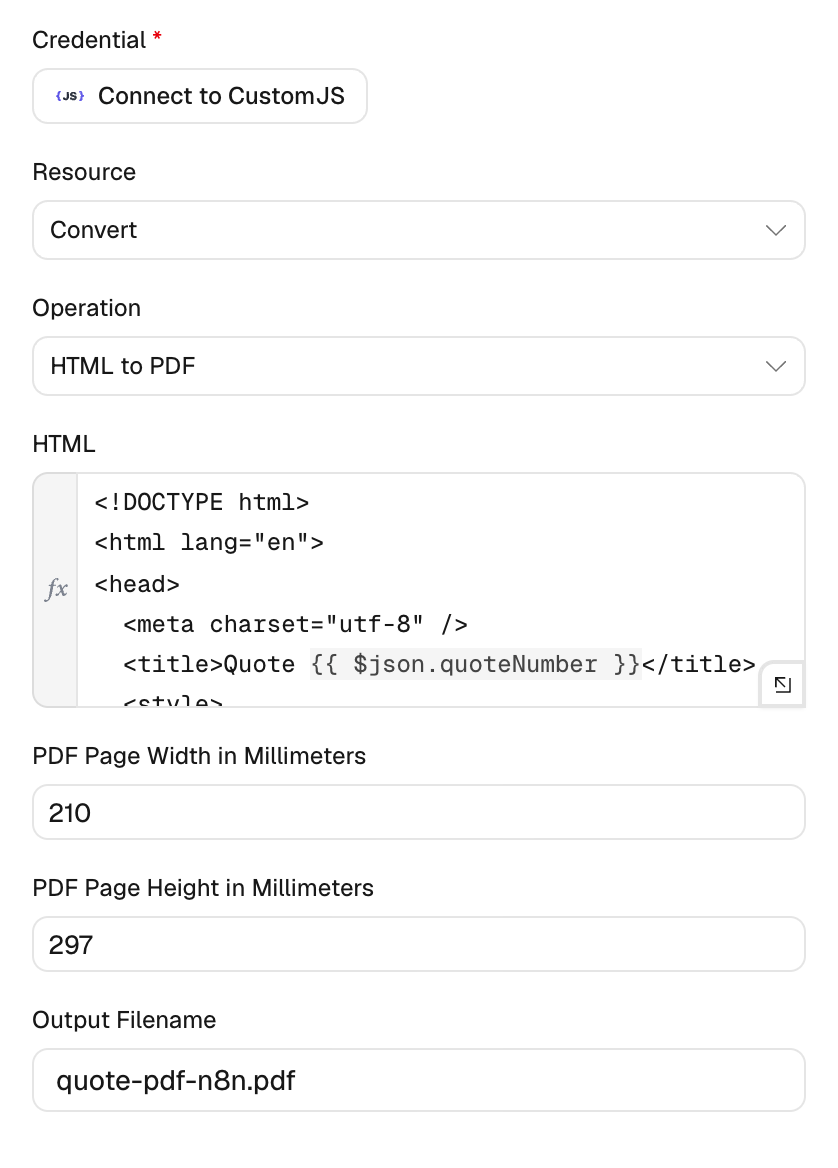
What the node looks like
// step by step
Build it yourself
- 1
Install the CustomJS node
Open the node panel and search for CustomJS. The node is published, so on n8n Cloud it is in the list already and nothing has to be installed. On a self-hosted instance, add it once under Settings, Community nodes as
@custom-js/n8n-nodes-pdf-toolkit-v2. The installation page has the details. - 2
Add your API key
Create a credential of type CustomJS API and paste the key from your workspace. One key covers PDF, screenshots and the other endpoints.
- 3
Feed the node your invoice data
Anything that produces one item per invoice works: Airtable, Postgres, a Stripe trigger, a webhook. The imported workflow uses a Set node so you can run it before wiring up a real source.
- 4
Set resource and operation
On the CustomJS node choose Resource: Convert and Operation: HTML to PDF. The HTML field then appears. Switch it to an expression and paste the template.
- 5
Use the PDF
The node returns the PDF as binary data on the item, so the next node can be Send Email, Google Drive, S3 or an HTTP request to your own system. Nothing has to be written to disk first.
// html template
The layout is yours
The node takes plain HTML and CSS, so the invoice is styled the way any web page is. The placeholders are n8n expressions, which means every field can come from an earlier node. Below is the body of the template, shortened to the parts you will want to change.
Header and recipient
<div class="top">
  <h1>Invoice</h1>
  <div class="muted">{{ $json.invoiceNumber }}</div>
  <div class="meta">
    <div class="muted">Issued {{ $json.issueDate }}</div>
    <div class="muted">Due {{ $json.dueDate }}</div>
  </div>
</div>

<div class="parties">
  <div class="label">Bill to</div>
  <div><strong>{{ $json.customerName }}</strong></div>
  <div class="muted">{{ $json.customerAddress }}</div>
</div>
Line items and total
<tbody>
  {{ $json.items.map(i =>
      `<tr>
        <td>${i.description}</td>
        <td class="num">${i.quantity}</td>
        <td class="num">${(i.quantity * i.unitPrice).toFixed(2)}</td>
      </tr>`
    ).join('') }}
</tbody>

<div class="grand">
  Total
  {{ $json.items.reduce((s, i) => s + i.quantity * i.unitPrice, 0).toFixed(2) }}
  {{ $json.currency }}
</div>
Page size, margins and page breaks are handled with ordinary print CSS. The print CSS cheatsheet covers the properties that behave differently on paper.
Questions about this template
Related templates
One HTML to PDF module turns the invoice data in your scenario into a finished document. Editable template, dynamic line items, output straight to Drive or email.
A Zap that renders an invoice PDF from the fields of the trigger step, including line items, and hands the file to Gmail or Drive.
Turn a deal in your CRM into a sendable quote PDF, with scope lines, a discount row and an expiry date that the workflow calculates.
Start with this invoice
Create a workspace, add the API key to n8n, and the imported workflow runs as it is.